To change URL on IPTV Box, first, check what type of service you use. M3U links usually end with .m3u, Xtream uses a server address with a username and password, and Portal URLs often include the word “portal” in them. Knowing this helps you enter the right kind of information.
On your IPTV box, open the IPTV app and go to Settings or Connections. Find your current profile and choose Edit. Paste the new URL or login details, then save and reload or update the app.
- Turn On the IPTV Box and Open Settings
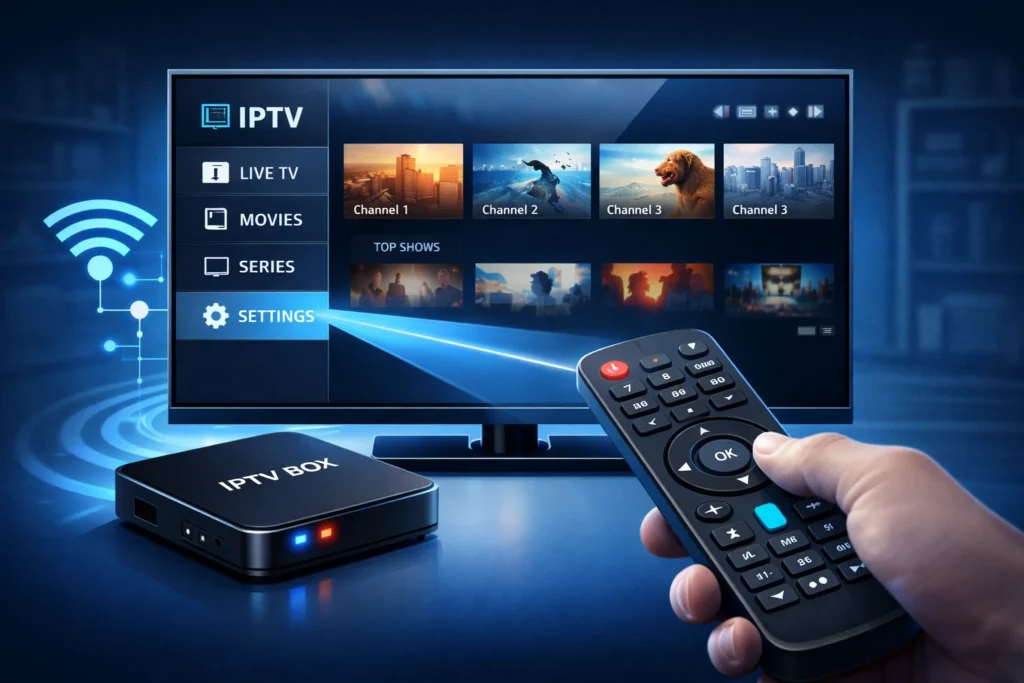
1 – First, turn on your IPTV box and wait until the home screen fully loads.
2 – Make sure your remote control is working properly.
3 – Use the remote to open the main menu.
4 – Look for “Settings”, “Configuration”, or a gear-shaped icon.
5 – Open it to access all system and app options.
6 – This is where you can change network, account, and IPTV settings.
- Find Account, Portal, or Server Settings
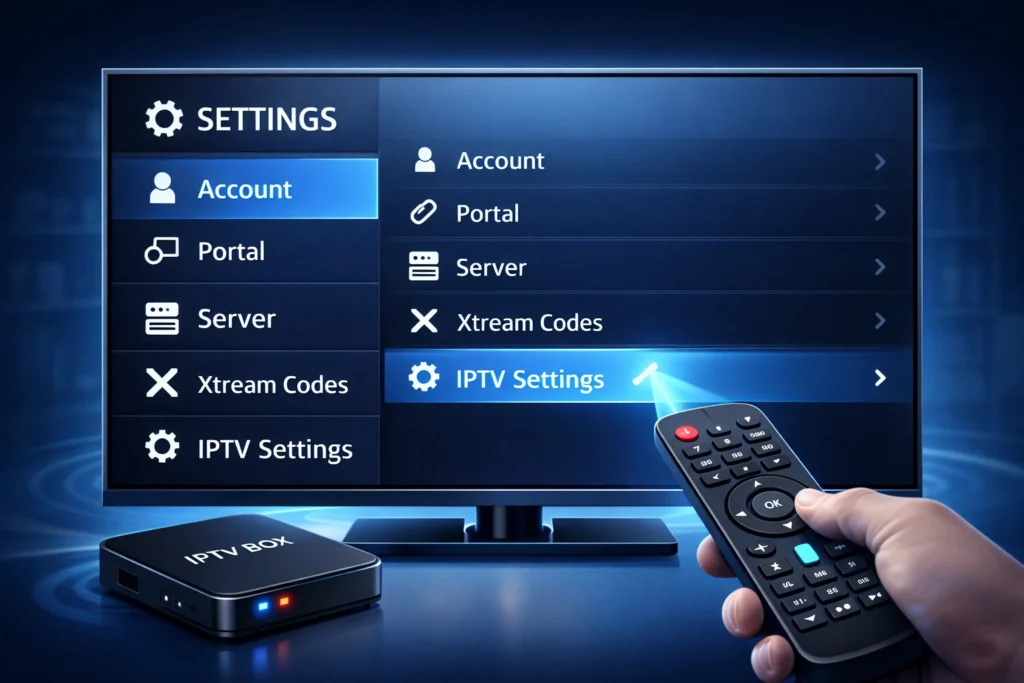
1 – Inside the settings menu, slowly scroll through the options.
2 – Look for a section named:
- Account
- Portal
- Server
- Xtream Codes
- IPTV Settings
- Network
3 – The name depends on your IPTV box or app type.
4 – Open this section to see your current IPTV Subscription details.
5 – This page usually shows the server or portal URL already saved.
- Edit the Current URL
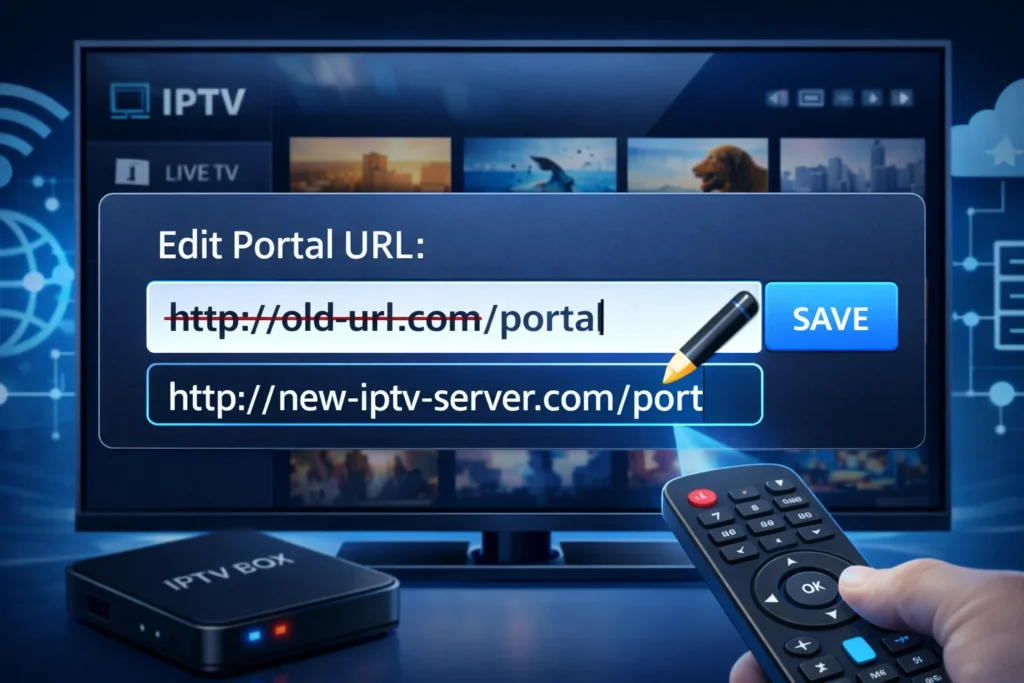
1 – Highlight the current server or portal URL using your remote.
2 – Press OK or Select to choose it.
3 – Select “Edit”, “Modify”, or “Change”.
4 – Delete the old URL completely.
5 – Now carefully type the new URL exactly as given by your IPTV provider.
6 – Pay attention to dots, slashes, numbers, and letters.
7 – One small mistake can stop channels from loading.
- Save and Restart
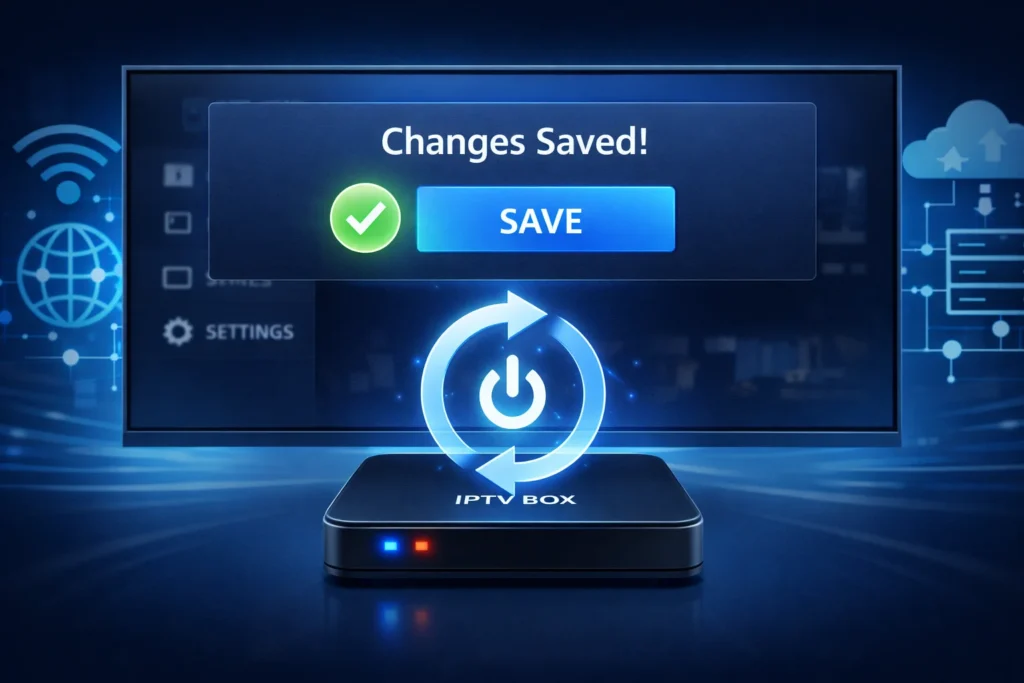
1 – After typing the new URL, press “Save”, “OK”, or “Apply”.
2 – Exit the settings menu.
3 – Restart the IPTV box or at least close and reopen the IPTV app.
4 – This allows the box to connect to the new server and reload the channel list.
- Test the New URL
1 – When the box finishes restarting, open the IPTV app.
2 – Wait while it loads channels and data.
3 – Open several live TV channels to test.
4 – Also try a movie or series if available.
5 – If everything plays normally, the new URL works.
6 – If nothing loads, check the URL again or ask your IPTV provider for help.
Frequently Asked Questions
What legal risks come with using third-party IPTV URLs?
You can face problems if the streams are not officially licensed. That can mean copyright issues or breaking your internet or TV provider’s rules. To stay safer, check if your IPTV is legal, avoid unknown or suspicious links, and look up the rules in your country before using them.
Will changing the IPTV URL delete my favorites or settings?
Most of the time, no. Your favorites and settings usually stay the same. But on some apps or boxes, changing the URL can reset everything. To be safe, write down your favorites or back them up if your app allows it before changing the URL.
Can I use more than one IPTV URL on the same box?
Yes, many IPTV boxes let you use more than one URL by creating different profiles. You can switch between them in the app. If switching does not work, try restarting the app or the box.
Do I need a VPN when changing or using a new IPTV URL?
You don’t have to use a VPN, but it is a good idea. A VPN hides your real IP address and adds privacy. If streaming is slow with a VPN, try another server or turn it off and test again.
How often should I change the IPTV URL?
Only change it when your provider tells you to, or when channels stop working. This usually happens once in a while, not every week. If streams break, try restarting the box, clearing the app cache, and reloading the URL before changing it.