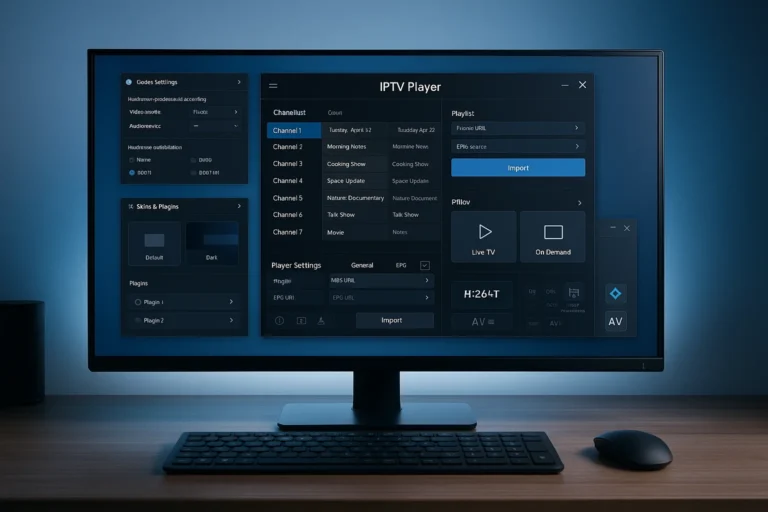
Lowering the buffer limit in IPTV Smarters Pro simply means the app loads less video before starting, which can make IPTV channels open faster, especially on older or less powerful devices. It can also help reduce slowdowns on low-end TV boxes.
Only try this after checking that the problem isn’t caused by the IPTV service itself or your internet connection. As a general guide, start with about 10–20 seconds on Android TV sticks or older devices, and 5–10 seconds when using mobile data.
If you notice pauses, sound cuts, or choppy video, increase the buffer again and test. Next, you can follow clear step-by-step tests and safer fixes to improve IPTV streaming without causing new issues.
Should You Lower Buffer Limit in IPTV Smarters Pro?
Lowering the buffer limit can feel like it will make IPTV Smarters Pro start faster, but it only helps in a few situations.
Try it mainly when the stream takes too long to begin, your internet is stable, and you’ve already checked that the issue isn’t coming from the provider or your network setup.
Lower it a little and test. If the video starts faster, keep it. If the stream begins to pause or load again during playback, put the buffer back higher because you made the player “too impatient.”
If your device is not very powerful, choose the simpler video option when available and avoid settings that force the app to guess what your device can handle.
For live sports, don’t set the buffer too low, or you’ll get stutters and choppy motion. Change one setting at a time and test on the same channel so you can clearly see what actually improved things.
What does the buffer limit actually do in IPTV Smarters Pro?
The buffer limit controls how much video IPTV Smarters Pro loads before and during playback. It affects how fast IPTV channels start and how stable they stay while playing. A lower buffer starts streams faster, while a higher buffer helps prevent pauses when your internet speed drops.
Key points to know :
- Lower buffer → faster channel start, less memory use, but more risk of pauses.
- Higher buffer → slower start, smoother playback, but heavier on weak devices.
- Too low → stutter, audio cuts, reloading.
- Too high → long loading times and lag on low-end boxes.
Choosing the right buffer limit helps IPTV streams load quickly while staying stable during playback.
When lowering the buffer limit helps (and what to try)
Lowering the buffer limit can help when your device is slow, gets hot, or takes a long time to start channels. By loading less video in advance, the app can work more smoothly and use less memory, which is useful on older TV boxes, sticks, or phones.
Start by setting the buffer to 10–20 seconds on Android TV sticks, older devices, or basic IPTV boxes. If you’re using mobile data, try 5–10 seconds so the stream reacts faster to network changes.
After changing the setting, test one thing at a time: open a channel from scratch, switch channels, and jump forward or backward once or twice. If playback feels smoother, keep the setting.
When lowering the buffer limit makes buffering worse
Lowering the buffer too much can cause more problems instead of fixing them. If the app doesn’t have enough video loaded, normal internet slowdowns can empty the buffer faster than it refills, which leads to constant pauses and reloading.
You’ll notice signs like frequent buffering, short freezes every few seconds, sound cutting out, or video that never feels smooth.
If this happens right after lowering the buffer, it means the setting is too low for your connection or the channel you’re watching. In that case, raise the buffer slightly until playback becomes stable again.
Better fixes for IPTV Smarters Pro buffering problems
1- Avoid VPNs if streaming slows down : Turn off any VPN and test IPTV again, as VPNs often increase buffering and delay.
2 – Test the IPTV service itself : Open the same channel on another app or device. If it buffers everywhere, the issue is likely with the IPTV provider and not your setup.
3 – Clear the app cache : Remove temporary app data to fix glitches that can cause playback issues.
4 – Close background apps : Free up memory by closing other apps running on your device, especially on low-end TV boxes or sticks.
5 – Use simpler video options on weak devices : If available, choose standard video settings instead of high-efficiency formats that require more processing power.
Frequently Asked Questions
Does Buffer Limit Affect IPTV Smarters Pro Data Usage or Bandwidth?
Buffer limit doesn’t materially change IPTV Smarters Pro bandwidth; bitrate drives usage. You’ll only shift burstiness and rebuffer risk. Under data caps or network throttling, lower buffers may reduce prefetch waste, not sustained throughput.
Will Lowering Buffer Limit Reduce Channel Change Delay or Zap Time?
Lowering buffer limit can slightly improve zap time, but only if playback caching was excessive; network latency and stream startup dominate. You’ll risk more stutters. Tune buffer modestly, then test jitter, CDN, and decoder.
Does Buffer Limit Impact Video Quality, Resolution, or Bitrate Selection?
It usually doesn’t affect resolution or bitrate choice; your stream’s adaptive bitrate logic does. Lowering buffer limit mainly reduces video buffering headroom, increasing stalls on jittery links. Only providers with capped profiles might shift quality.
Are Buffer Limit Settings Different on Android, iOS, Firestick, and Smart TVS?
Yes, buffer limit behavior varies by OS due to hardware differences and platform limitations. On Android/Firestick you’ll see finer control; iOS often caps it. Smart TVs may ignore values. Test playback logs, adjust incrementally, reboot.
Can a VPN Change How Buffer Limit Performs in IPTV Smarters Pro?
Yes, you’ll see buffer limits behave differently with a VPN due to VPN routing changes and encryption overhead affecting latency, jitter, and throughput. Test nearby servers, switch UDP/TCP, disable split-tunneling, then retune buffer after rechecking bandwidth.