To Add VPN to IPTV Smarters Pro, you don’t add a VPN inside the app. You protect IPTV Smarters Pro by connecting your device to a VPN first.
Install a VPN app, log in, choose a nearby server, and tap “Connect”. Turn on basic safety options like blocking the internet without VPN and DNS protection if available.
Once the VPN shows “connected”, open IPTV Smarters Pro and use it normally. Your streaming is now protected.
1. Choose and Install a VPN App
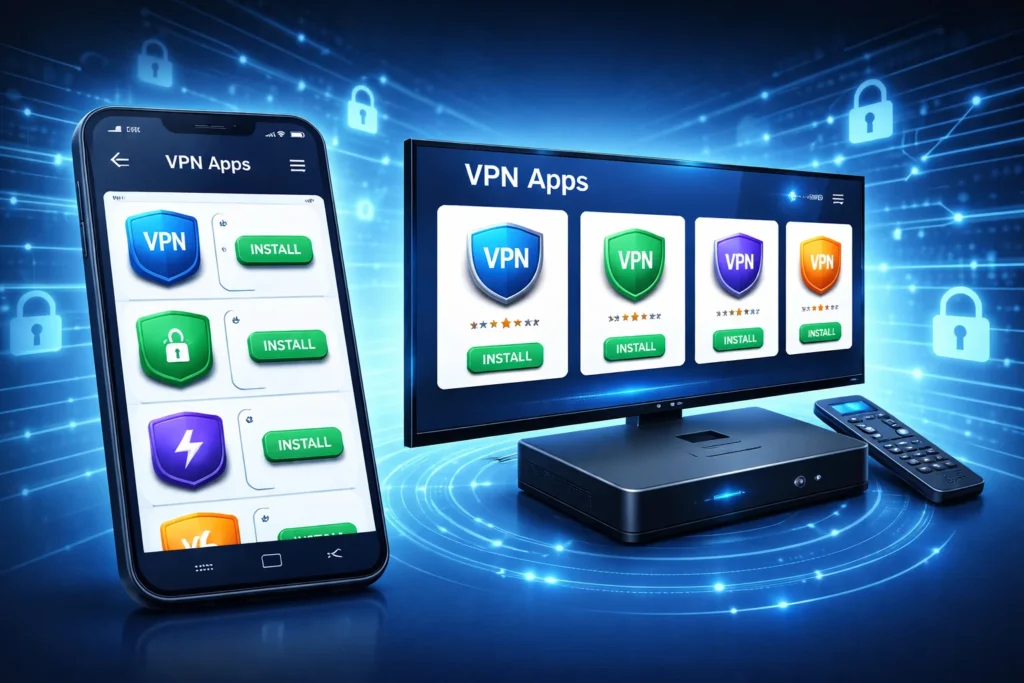
First, you need a VPN service and its app on your device.
- Open your device’s app store (Google Play, Apple App Store, Amazon Appstore, or your TV box store).
- Search for a VPN app (NordVPN, ExpressVPN, Surfshark…).
- Download and install the app.
- Open it and sign in with the username and password given by your VPN provider.
Make sure the app opens correctly before moving to the next step.
2. Connect to a VPN Server
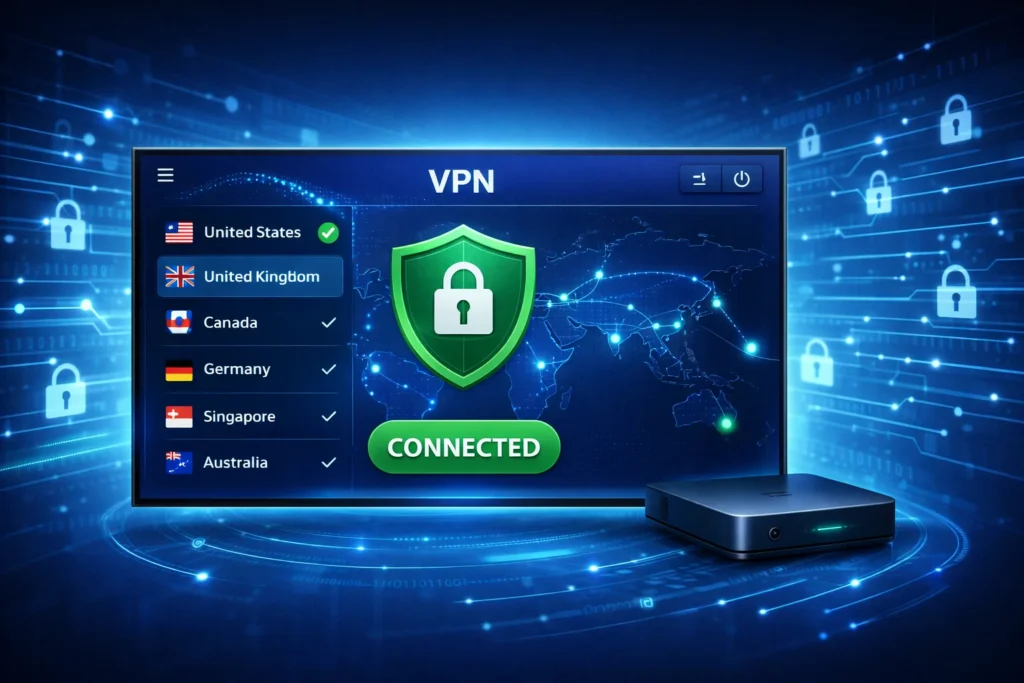
- Open the VPN app.
- You will see a list of countries or servers.
- Choose a server close to your location for better speed, or another country if you want to unblock content.
- Tap “Connect”.
- Wait until the app shows “Connected” or a green/active status.
Now all your internet traffic goes through the VPN.
3. Open IPTV Smarters Pro After VPN Is Active
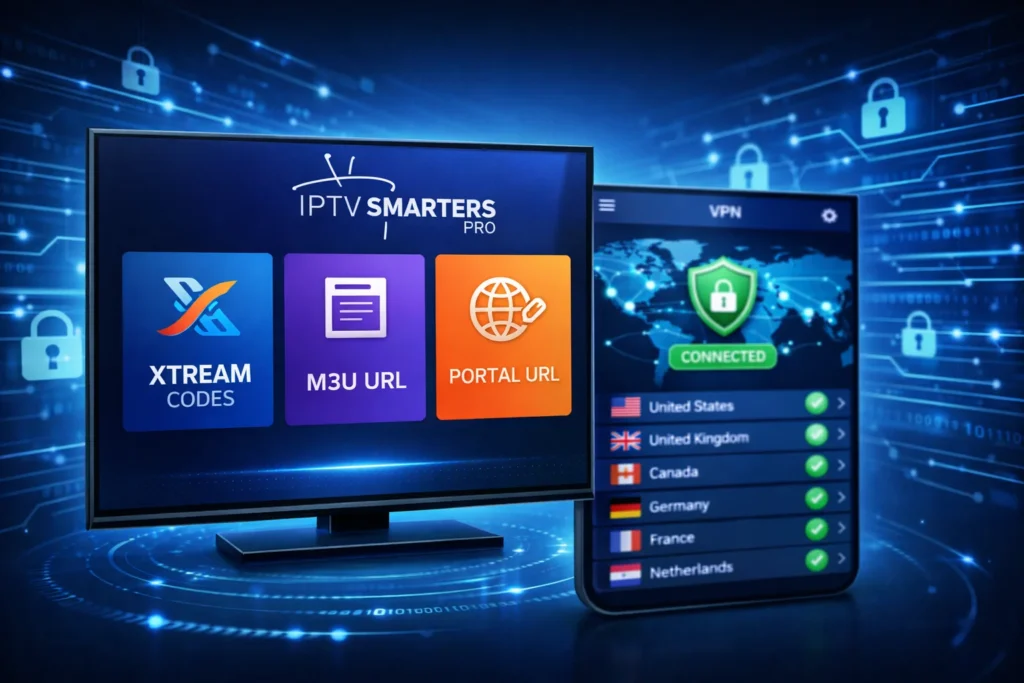
- Keep the VPN running in the background.
- Open IPTV Smarters Pro.
- Log in using your usual method:
- Xtream Codes
- M3U Playlist
- Portal URL
- Let the app load your channels, movies, and series.
Always connect the VPN before opening IPTV Smarters Pro to avoid connection errors.
4. Test Streaming With the VPN

- Open a live TV channel from your IPTV subscription.
- Try also a movie or series to be sure everything works.
- If you see buffering or errors:
- Disconnect the VPN.
- Choose another server in the VPN app.
- Reconnect and test again.
Some servers are faster or more stable for IPTV than others.
5. Make the VPN Connect Automatically
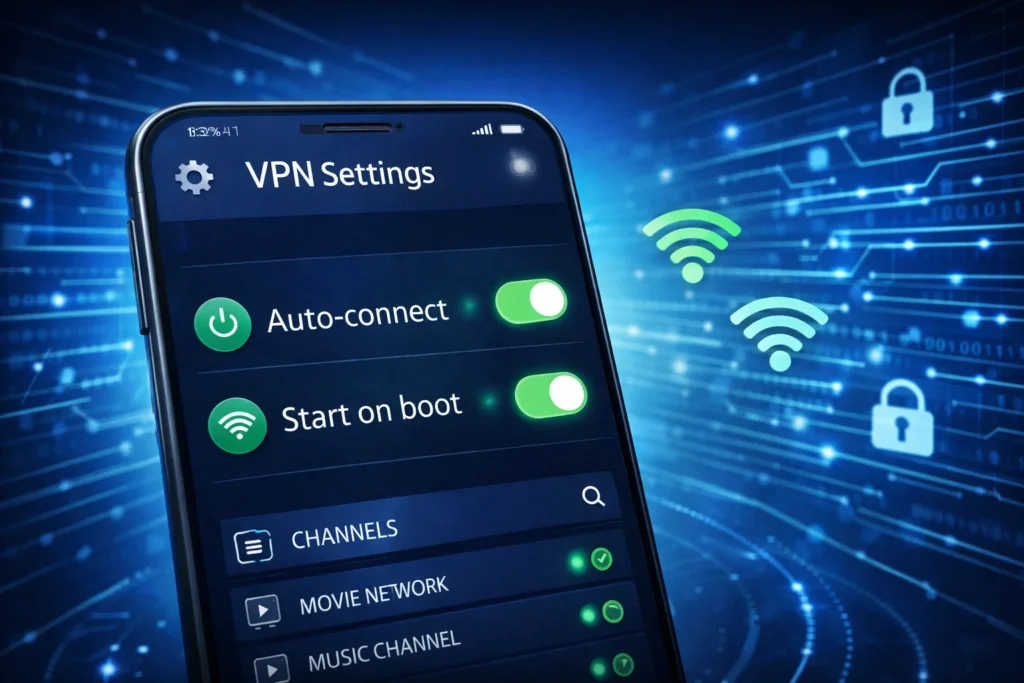
To save time every day:
- Open your VPN app settings.
- Turn on options like “Auto-connect”, “Start on boot”, or “Connect on Wi-Fi”.
- This way, when you turn on your device, the VPN will start by itself.
- Then you just open IPTV Smarters Pro and start watching without extra steps.
Frequently Asked Questions
Can I use IPTV Smarters Pro with a VPN on my router?
Yes. If your router supports VPN, you can protect all your devices at once. You just need to activate the VPN on your router and make sure it connects correctly. Once it is running, all your internet traffic, including IPTV Smarters Pro, will go through the VPN automatically. You can test your location online to confirm the VPN is working.
Can a VPN change the TV guide (EPG) or time in Smarters Pro?
Yes, it can. A VPN may change your virtual location, which can affect the time shown in the app or cause the program guide to be slightly off. To fix this, check that your device time is correct and choose a VPN server in the same country as your EPG. Restart the app after changing the server to see if the guide lines up properly.
Does IPTV Smarters Pro support split tunneling?
No, IPTV Smarters Pro does not have its own split tunneling option. That means you cannot control VPN usage from inside the app. If you want some apps to use the VPN and others not, you must set that in your VPN app or in your device settings. After setting it, always test to make sure your real IP is not leaking.
Can I use one VPN account on several devices with Smarters Pro?
Yes, as long as your VPN plan allows multiple devices at the same time. Each VPN provider has a limit on how many devices can be connected at once. If you stay within that limit, you can run IPTV Smarters Pro on several devices using the same VPN account without problems.
Is using a VPN with IPTV Smarters Pro legal in my country?
It depends on where you live and what content you watch. Using a VPN is legal in many countries, but some IPTV content may not be. To stay safe, you should check your local laws and the rules of your IPTV provider, and avoid watching illegal or unlicensed streams.