Clearing the IPTV cache helps fix buffering, app freezes, and slow channel loading by removing temporary files stored inside the application, without deleting your account or subscription details. IPTV apps save small data fragments to load menus and streams faster, but over time these files can become corrupted or too large, causing performance issues.
Many users who stream through regional services such as IPTV Canada or other online platforms clear the cache regularly to maintain smooth playback. This action is safe, quick, and does not remove playlists or login credentials in most cases.
1 – Open Device Settings
Turn on your IPTV box, Smart TV, or Android device.
Navigate to the main Settings menu from the home screen.

Look for the section labeled Apps, Applications, or App Manager.
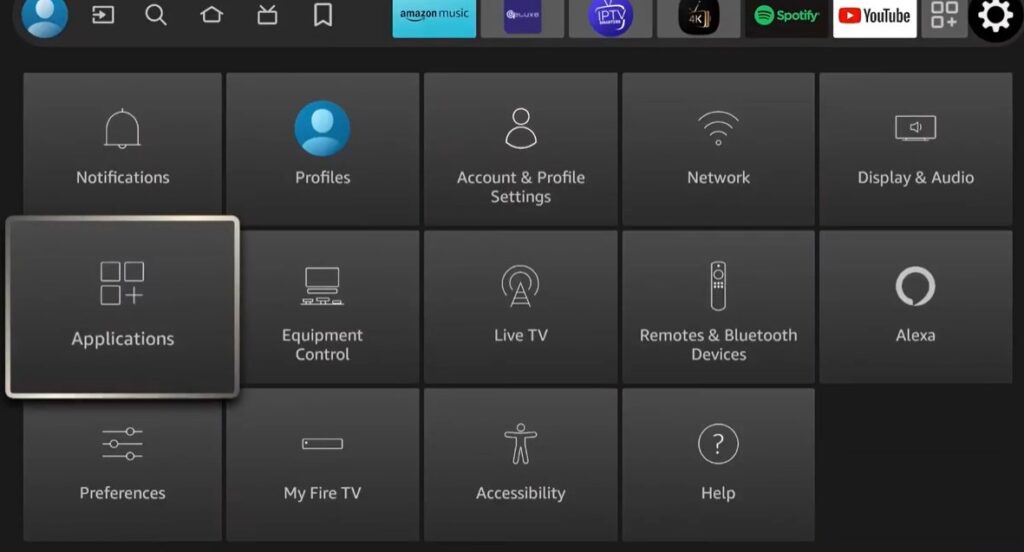
Use the remote control or touchscreen to scroll carefully.
Make sure the system is responding normally before continuing.
This step gives access to all installed applications on the device.
2 – Locate the IPTV Application
Scroll through the list of installed apps.
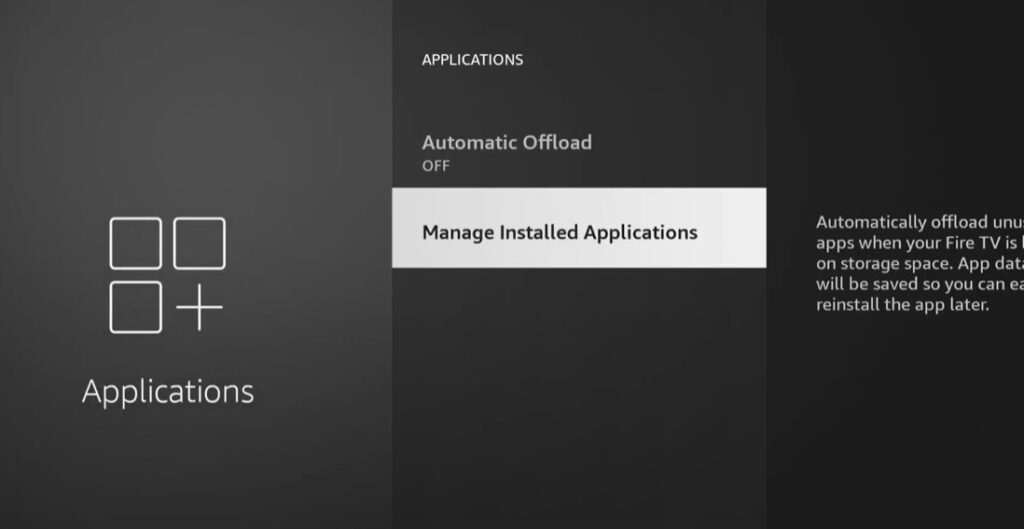
Select the IPTV player you currently use.
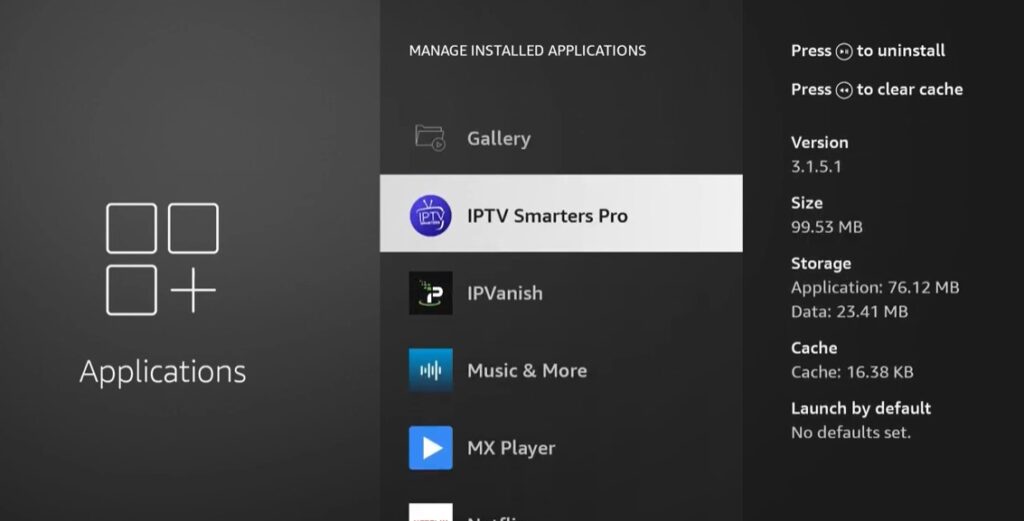
Wait for the application information screen to open fully.
Avoid pressing uninstall by mistake.
This ensures you are modifying only the intended IPTV software.
3 – Enter the Storage Section
Inside the app menu, find Storage or Storage & Cache.
Observe the cache size displayed on the screen.
Confirm you are in the correct submenu.
This section shows how much temporary space the app occupies.
4 – Clear the Cache
Select Clear Cache or Delete Cache.
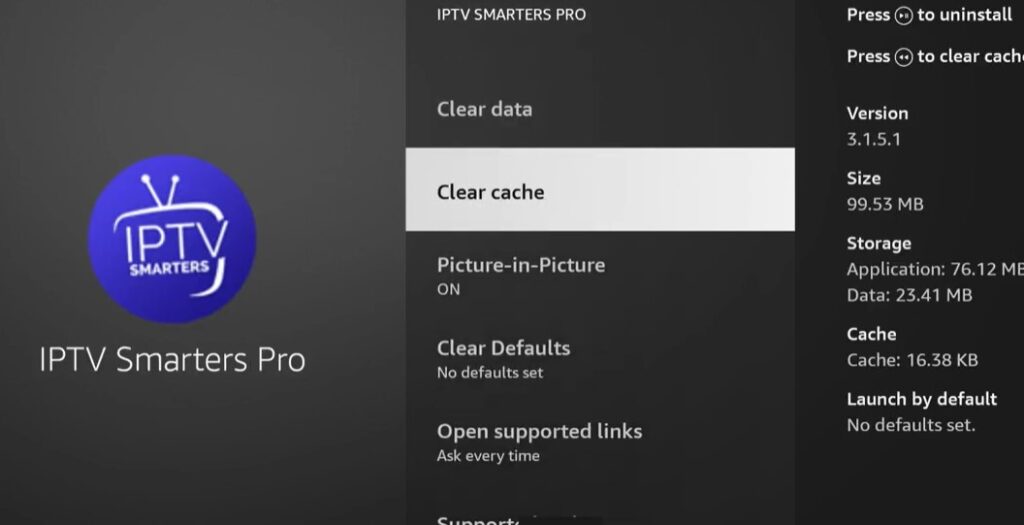
Confirm the action if a pop-up appears.
Wait a few seconds for the process to finish.
Do not unplug the device during this moment.
You should see the cache size return to zero.
This action removes only temporary files, not login details.
5 – Relaunch the IPTV App
Exit the settings menu and reopen the IPTV application.
Log in again only if requested.
Test several channels to check performance improvement.
Adjust playback settings if needed.
Restart the device if the issue continues.
After this step, streaming is usually smoother and faster.
Short Questions & Answers
Will clearing the cache delete my IPTV subscription?
No, clearing the cache only removes temporary files. Your subscription, playlists, and login credentials usually remain intact unless you choose “Clear Data.”
How often should I clear the IPTV cache?
Once every few weeks or whenever the app becomes slow, freezes, or shows loading errors is generally sufficient for stable performance.
What is the difference between cache and data?
Cache stores temporary files to speed up loading, while data contains your personal settings and accounts. Clearing data resets the app completely.
Can clearing the cache improve streaming quality?
Yes, it often reduces buffering and menu lag by removing corrupted or oversized temporary files that slow the app.
Is it safe for all devices?
Yes, clearing cache is safe on Android boxes, Smart TVs, and streaming devices because it does not affect the operating system.
What if the problem continues after clearing cache?
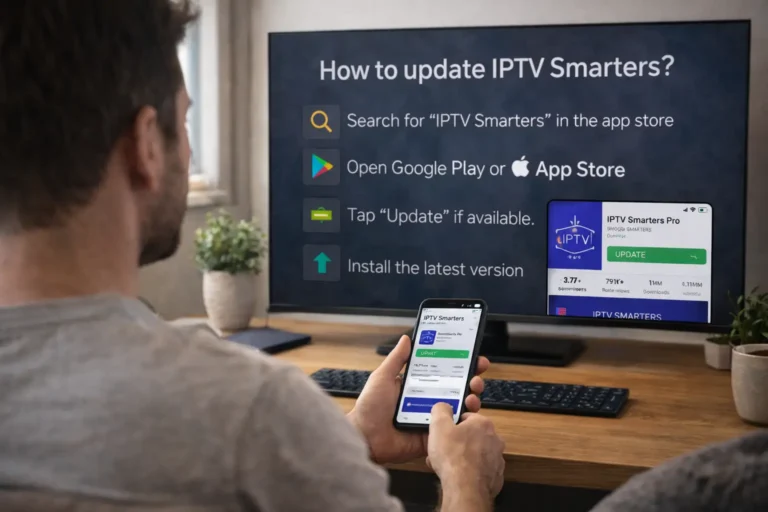
You may need to update the app, restart the device, or reinstall the IPTV player if performance issues persist.