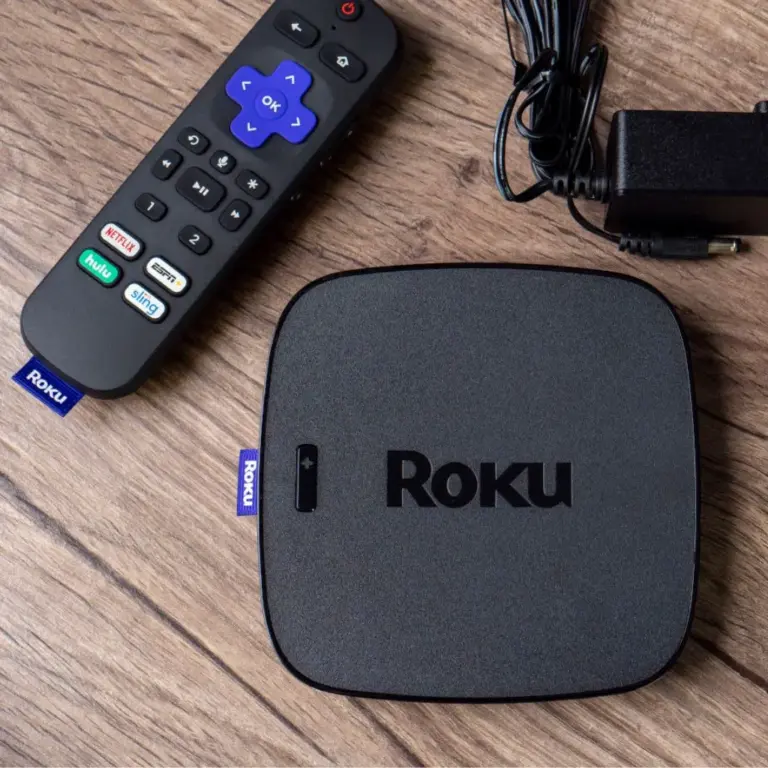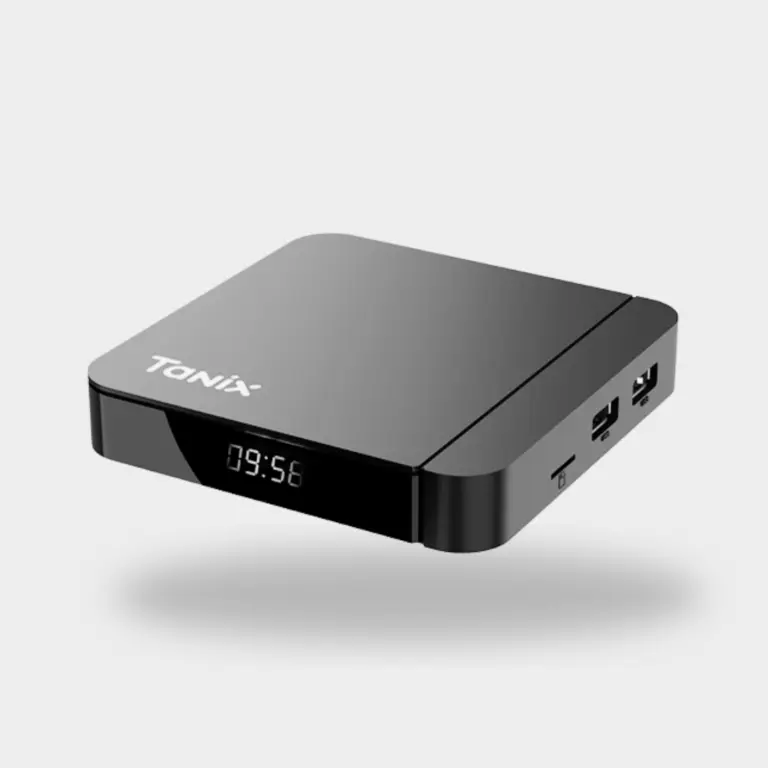
If IPTV is down today, the solution usually involves checking your internet connection, testing another channel or playlist, restarting your device and router, verifying server status, and updating or reopening the app, because IPTV outages are most often temporary and related to network or server issues rather than permanent failures.
IPTV services rely on stable internet and active streaming servers, so interruptions can occur during peak hours, maintenance periods, or regional network slowdowns. Many viewers who stream through regional services such as IPTV Canada or other online platforms experience occasional downtime, especially in the evenings or during major live events.
1 – Check Your Internet Connection
Open a web browser or another streaming app to confirm connectivity.
Test both Wi-Fi and mobile data if available.
Move closer to the router if the signal is weak.
Restart your modem or router if speeds are unstable.
Avoid multiple heavy downloads during testing.
A stable internet connection is essential for IPTV playback.
2 – Try Another Channel or Playlist
Switch to a different channel category.
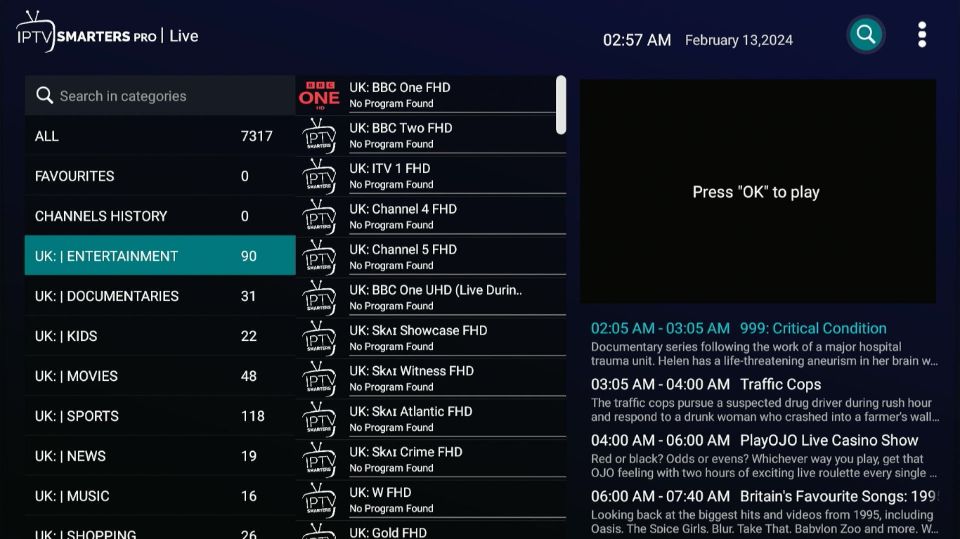
Test a non-live video or on-demand section.
Load a secondary playlist if you have one.
Observe whether only one stream fails.
Partial loading usually means server overload, not total outage.
This step helps identify if the issue is limited or global.
3 – Restart the Device and App
Close the IPTV application completely.
Turn off the device for 30–60 seconds.
Restart and reopen the IPTV app.
Clear recent background apps if possible.
Temporary glitches often disappear after reboot.
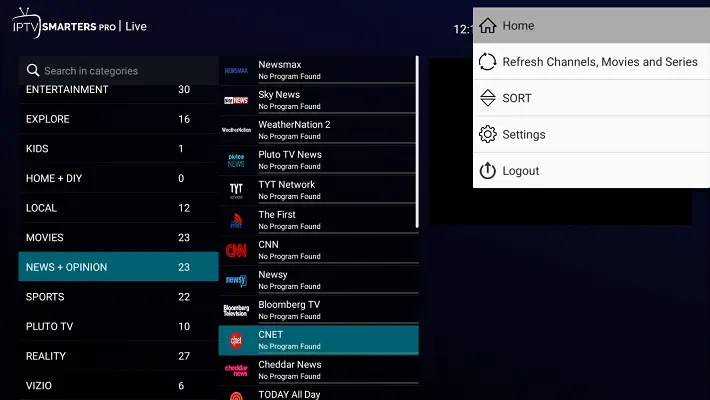
This refresh resets minor memory and playback errors.
4 – Check Server or Service Status
Ask other users or check community forums.
Look for official maintenance announcements.
Test the service on another device if available.
Server overloads are common during live events.
Waiting a few minutes may solve the issue.
This confirms whether downtime is external.
5 – Update or Reinstall the App
Open the app store and check for updates.
Install the newest version if available.
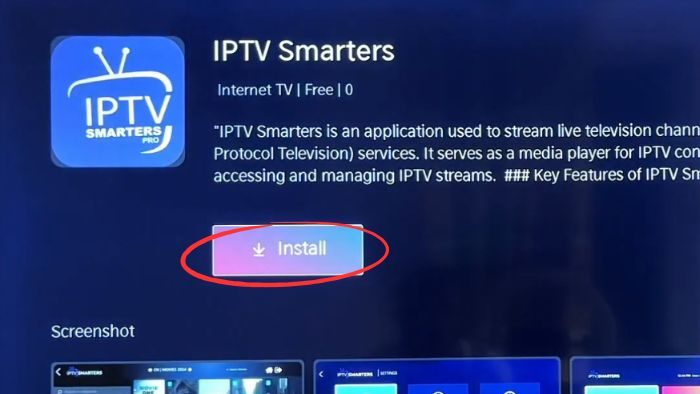
Clear cache before reinstalling if necessary.
Avoid unofficial download sources.
Restart the device after installation.
Updated apps often restore compatibility quickly.
Short Questions & Answers
How do I know if IPTV is really down?
If multiple channels fail across different devices and your internet works normally, the issue is likely server-side rather than local.
Can internet speed cause IPTV downtime?
Yes, slow or unstable bandwidth can mimic an outage by preventing streams from loading even when servers are active.
How long does IPTV downtime usually last?
Most outages are temporary and last from a few minutes to an hour, depending on server load or maintenance schedules.
Should I reinstall the app immediately?
Not necessarily. Try restarting and checking connectivity first, since reinstalling is usually a last troubleshooting step.
Do live events increase downtime risk?
Yes, large sporting or entertainment events often overload servers, causing temporary buffering or channel failures.