Updating IPTV Smarters means checking your internet connection, opening the app store, pressing the update button, installing the latest version, and relaunching the app to verify that everything works correctly, and this process helps fix bugs, improve streaming stability, and ensure compatibility with new playlists and devices.
Many users who stream through services such as IPTV Canada or other online platforms perform these updates periodically to maintain performance and security. The update usually takes only a few minutes and does not remove playlists or login credentials.
On Android / Android TV / Fire Stick
1 – Open Google Play Store (or Appstore on Fire Stick).
2 -Search for IPTV Smarters.
3 – Open the app page and click the three buttons at the top left.
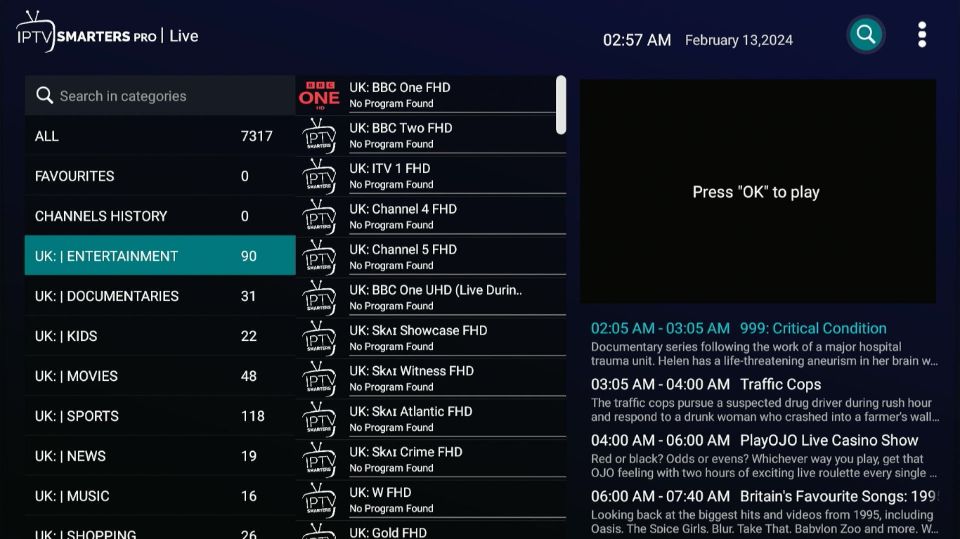
4 – Search the Update or Refresh button, click it.
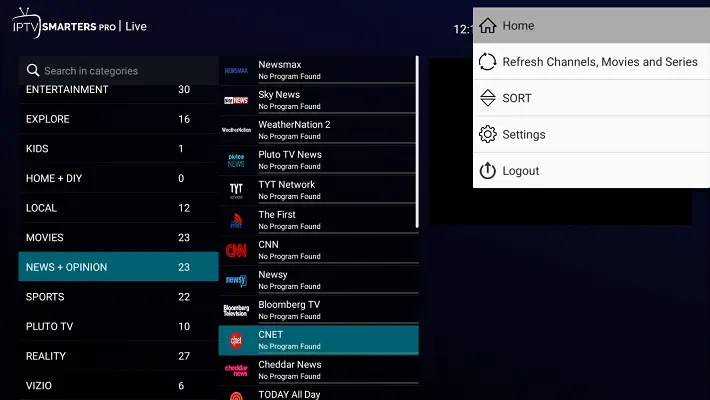
5 – Wait for the download and installation to finish.
6 – Open the app again.
On iPhone / iPad (iOS)
1 – Open the App Store.
2 – Tap your profile icon (top right).
3 – Scroll to Available Updates.
4 – Find IPTV Smarters.
5 – Tap Update.
On Smart TV (Samsung / LG)
1 – Open the App Store on your TV.
2 – Go to My Apps or Updates.
3 – Select IPTV Smarters.
4 – Choose Update if available.
Short Questions & Answers
Will updating delete my playlists?
No, updating normally keeps your playlists and login details intact because it only replaces system files, not personal data.
How often should I update the app?
Checking once every few weeks is recommended, especially if you notice crashes or loading issues.
What if there is no update button?
It usually means you already have the newest version installed or the update has not yet been released for your region.
Can I update without an app store?
Yes, some devices allow manual installation through official download files, but this requires careful verification for security.
Why is updating important?
Updates fix bugs, improve streaming compatibility, enhance security, and often introduce new features that improve usability.
What if the app still doesn’t work after updating?
You may need to clear the cache, reinstall the app, or restart the device to fully apply the update changes.