
To install IPTV on Extreme IPTV, you’ll need to configure Extreme IPTV correctly to access your streaming content, but the installation process involves more than just downloading an app.
Before you can stream channels, you must verify device compatibility, establish proper network protocols, and integrate your M3U playlist through the application’s backend infrastructure.
This IPTV setup sequence requires specific technical parameters that, when misconfigured, can prevent successful deployment. Here’s what most users overlook during initial configuration.
Download and Install Extreme IPTV App
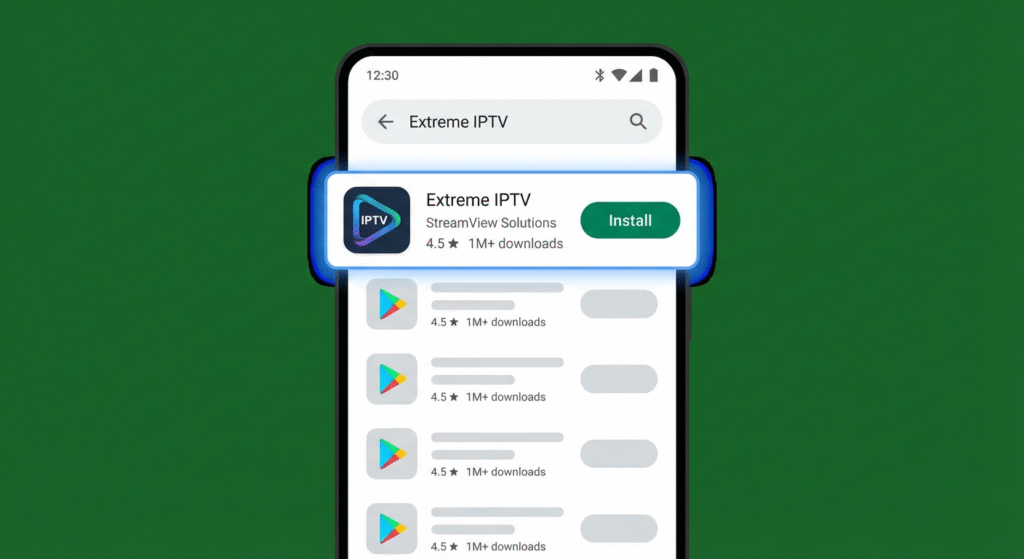
Open the Google Play Store on your Android device, Smart TV, or streaming box.
Search for “Extreme IPTV” in the search bar and select the official application from the results. Tap the Install button and wait for the download to complete.
For Amazon Firestick users, you can use the Downloader app to install the APK file by entering the official Extreme IPTV download URL.
Once the installation is finished, open the app from your home screen or app drawer to begin the setup process.
Gather Your IPTV Service Credentials
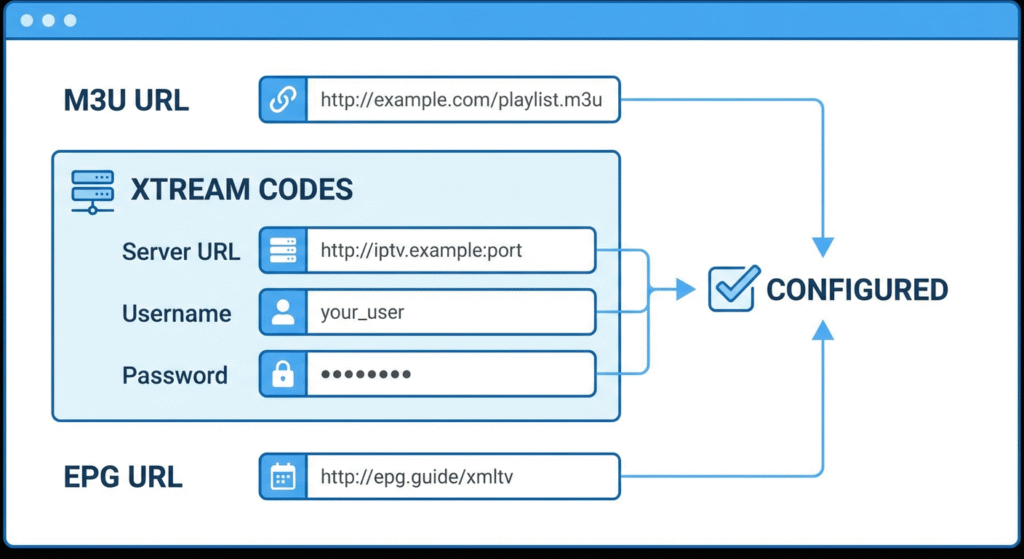
Before configuring Extreme IPTV, collect the necessary login information from your IPTV provider.
You’ll need either an M3U playlist URL (a direct link to your channel list) or Xtream Codes API credentials (server URL, username, and password).
These details are typically sent via email after your subscription is activated. Some providers may also offer an EPG (Electronic Program Guide) URL for TV guide data. Keep this information ready as you’ll need it in the next step to connect your service.
Add Your IPTV Playlist to Extreme IPTV
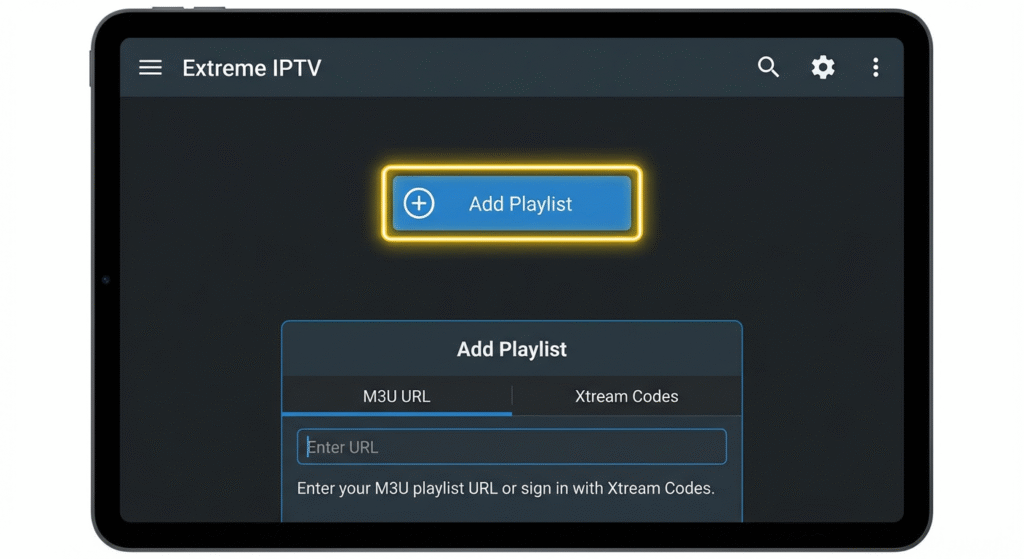
Launch Extreme IPTV and look for the “Add Playlist” button or the “+” icon on the main screen.
You’ll see options to add your service: select “M3U URL” if you have a playlist link, or “Xtream Codes” if you received API credentials.
For M3U: paste your complete playlist URL into the URL field.
For Xtream Codes: enter your server address (without http://), username, and password in the respective fields. Give your playlist a recognizable name for easy identification. Tap “Add” or “Save” to proceed with the connection.
Load Your Channel List and EPG Data
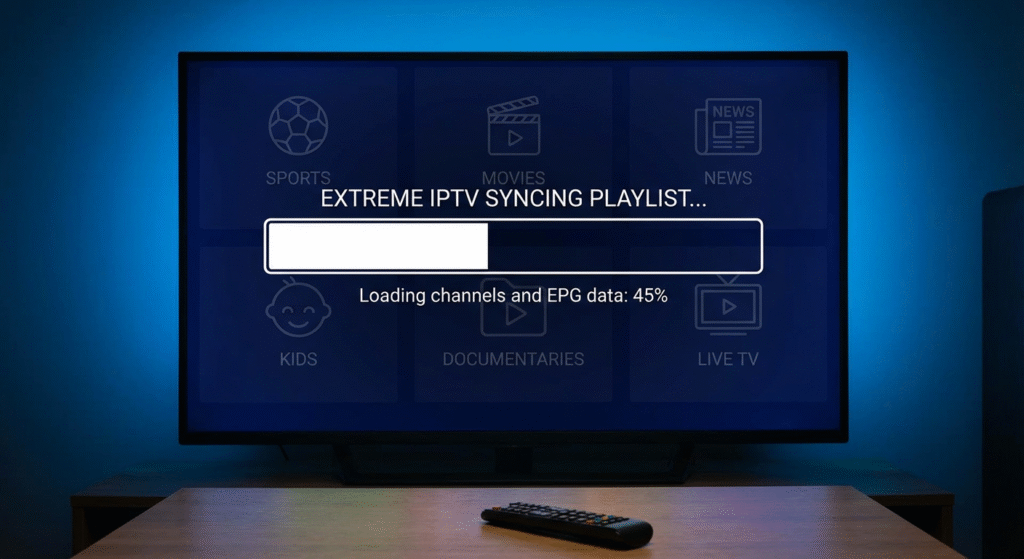
After entering your credentials, Extreme IPTV will connect to your provider’s server and begin downloading your channel list.
This synchronization process typically takes 20-60 seconds depending on the size of your playlist and your internet speed.
You’ll see a progress indicator showing the download status. The app will also load the EPG (TV guide) data if your provider includes it.
Once complete, your channels will appear organized by categories such as Sports, Movies, News, and Entertainment in the main interface.
Configure Settings and Optimize Playback
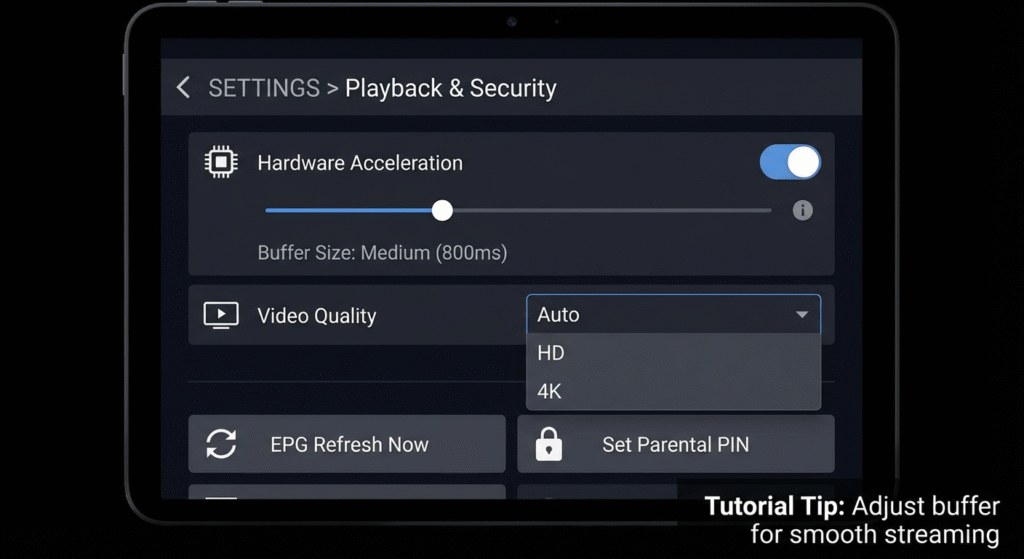
Access the settings menu by tapping the gear icon or three-line menu button. Enable hardware acceleration in the player settings to improve video performance and reduce buffering.
Set the buffer size between 15-20 seconds for stable streaming. Adjust video quality settings to Auto, HD, or 4K based on your internet bandwidth.
Configure the EPG refresh interval to keep your TV guide updated. You can also set up parental controls by creating a PIN code to restrict access to adult content.
Customize the interface theme and organize your favorite channels. Navigate to “Live TV” to start browsing and streaming your IPTV content on Extreme IPTV.
Frequently Asked Questions
Is Extreme IPTV Legal to Use in My Country?
You’ll need to verify your local IPTV regulations before deployment. Streaming services’ legality varies by jurisdiction—unlicensed content distribution violates copyright protocols in most regions. Consult your country’s telecommunications authority for infrastructure compliance and licensing requirements.
How Much Does Extreme IPTV App Cost?
Extreme IPTV app’s core software doesn’t cost anything – it’s free. You’ll need separate IPTV subscription pricing from providers for content access. The app features merely facilitate protocol streaming; actual service costs depend on your chosen provider.
Can I Use Extreme IPTV on Multiple Devices Simultaneously?
You can’t use Extreme IPTV on multiple devices simultaneously with one subscription. According to Extreme IPTV reviews, you’ll need separate accounts per device to avoid IPTV compatibility issues and maintain stable streaming protocol connections.
Does Extreme IPTV Support Parental Control Features?
Yes, you’ll find Extreme IPTV’s parental control features enable content filtering through PIN-protected access protocols. You can configure channel restrictions, age-based content filtering, and time-based viewing limits within the application’s security infrastructure settings menu.
Which Video Formats and Codecs Does Extreme IPTV Support?
You’ll find Extreme IPTV’s supported codecs include H.264, H.265/HEVC, and MPEG-4, while video formats encompass M3U8, TS, MP4, and MKV containers. The platform’s infrastructure handles adaptive bitrate streaming protocols for optimal playback performance.