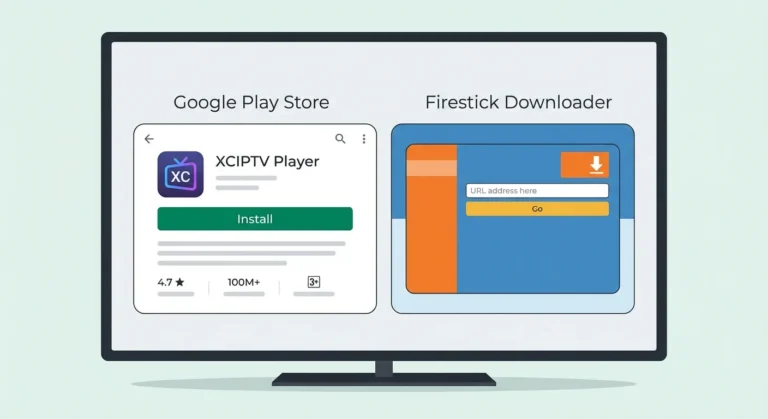
To install IPTV on Kodi, start by getting your M3U playlist link from your IPTV provider. If you also have a TV guide link (EPG/XML), keep it ready too. Then open Kodi and check that your version is 18 (Leia) or newer by going to Settings (gear icon) > System Information.
Next, in Kodi go to Settings > Add-ons > Install from repository > PVR clients, install “PVR IPTV Simple Client”, and open its settings. Choose “Remote Path”, paste your M3U link, add the EPG link if you have one, press OK, enable the add-on, and restart Kodi. After that, your IPTV subscription channels will be ready to watch.
1. Préparer Kodi et vos informations IPTV

Avant de commencer, vérifiez trois choses :
- Kodi est bien installé et fonctionne correctement sur votre appareil.
- Vous avez un lien M3U valide ou un fichier M3U fourni par votre service IPTV.
- Si possible, vous avez aussi un lien EPG (guide TV) au format XML pour afficher les programmes.
Notez votre lien M3U et votre lien EPG dans un endroit facile à copier, car vous devrez les coller dans Kodi.
2. Installer l’extension IPTV dans Kodi
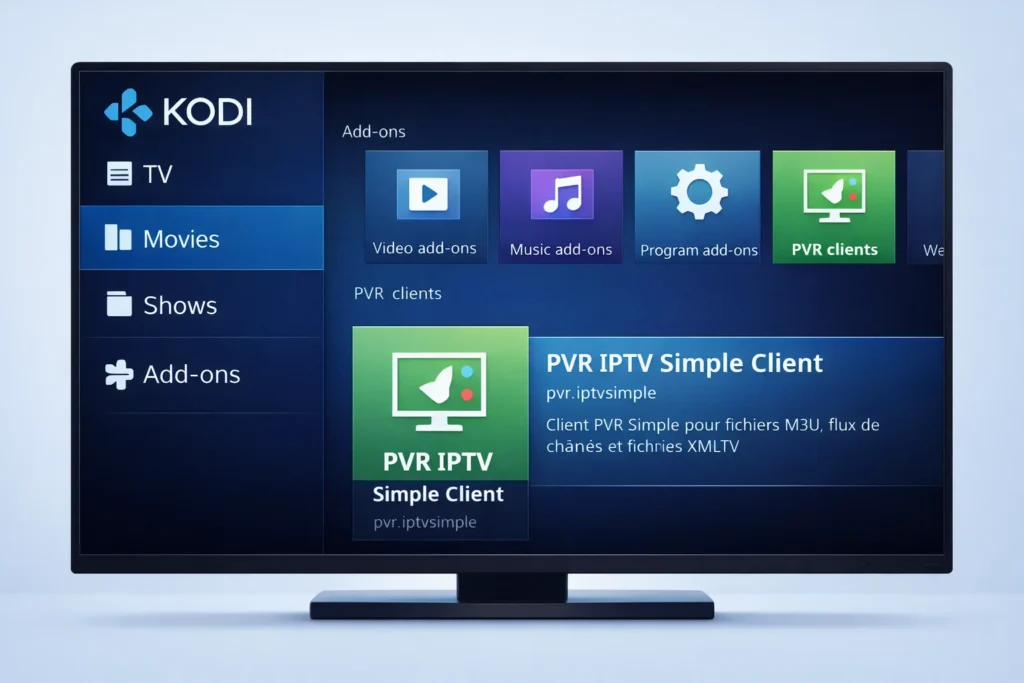
- Ouvrez Kodi.
- Cliquez sur l’icône Paramètres (roue dentée).
- Allez dans “Extensions” ou “Add-ons”.
- Choisissez “Installer depuis le dépôt”.
- Entrez dans la catégorie “Clients PVR”.
- Sélectionnez “PVR IPTV Simple Client”.
- Cliquez sur “Installer” et attendez la confirmation.
Cette extension est officielle et permet à Kodi de lire des playlists IPTV.
3. Ajouter votre playlist M3U
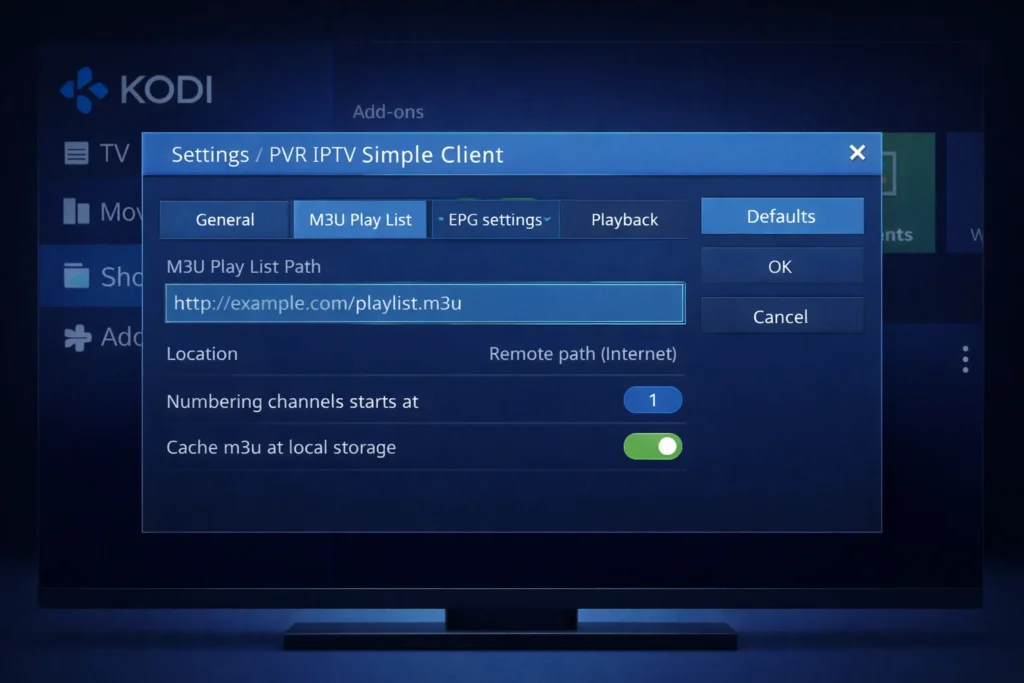
- Retournez dans Paramètres → Extensions → Mes extensions → Clients PVR.
- Ouvrez “PVR IPTV Simple Client”.
- Cliquez sur “Configurer”.
- Dans l’onglet Général :
- Choisissez “Chemin distant” si vous avez une URL M3U.
- Ou “Chemin local” si vous avez un fichier M3U sur votre appareil.
- Collez votre lien M3U ou sélectionnez votre fichier.
- Validez avec “OK”.
À ce stade, Kodi sait où trouver la liste de vos chaînes.
4. Ajouter le guide TV (facultatif mais recommandé)
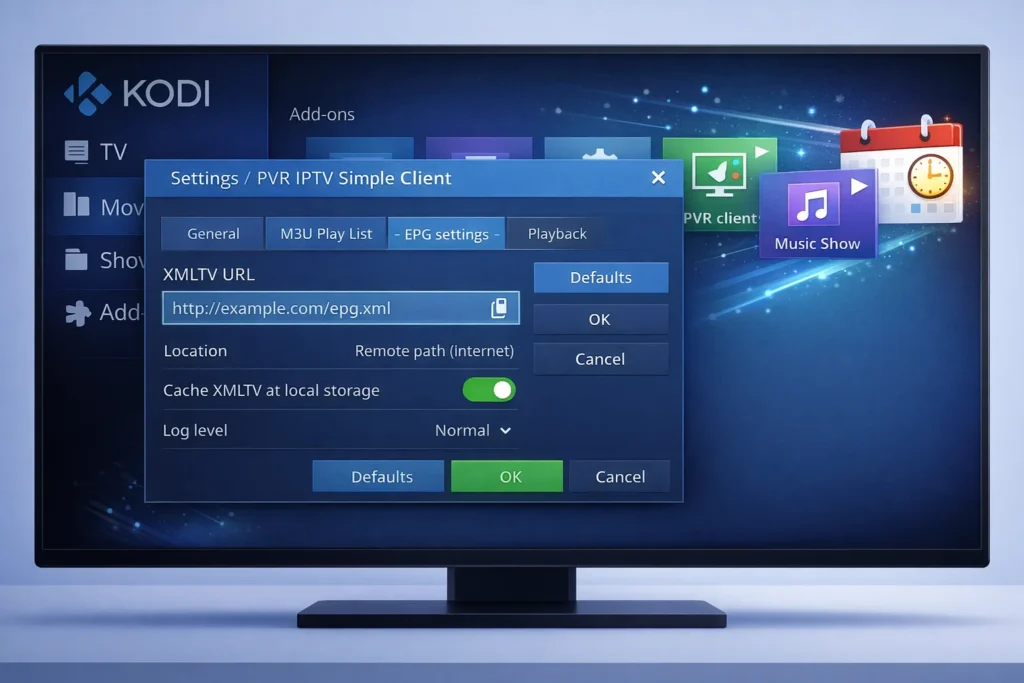
- Retournez dans la configuration de “PVR IPTV Simple Client”.
- Ouvrez l’onglet EPG.
- Choisissez “Chemin distant” si votre guide est en ligne.
- Collez l’URL XML de votre guide TV.
- Validez avec “OK”.
Le guide permet d’afficher le nom des émissions, les horaires et ce qui passe ensuite.
5. Redémarrer Kodi et regarder vos chaînes
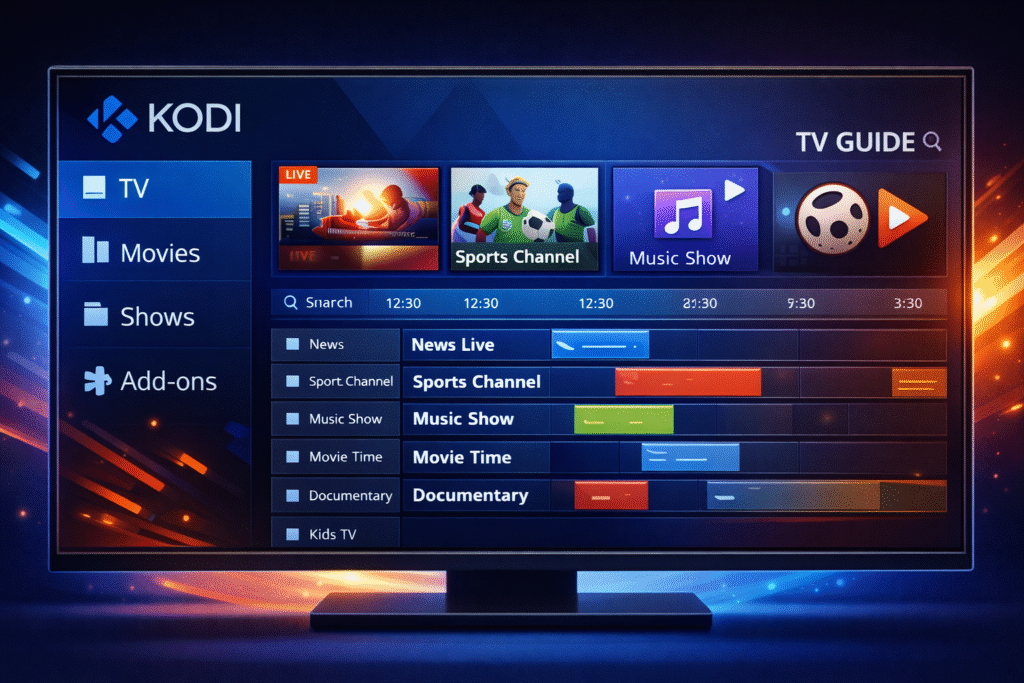
- Fermez complètement Kodi.
- Relancez Kodi pour forcer le chargement des chaînes.
- Allez dans le menu principal.
- Ouvrez la section “TV”.
- Entrez dans “Chaînes” pour voir votre liste IPTV.
- Si vous avez ajouté un EPG, ouvrez “Guide” pour voir les programmes.
Vous pouvez maintenant regarder vos chaînes IPTV directement dans Kodi.
Frequently Asked Questions
Is IPTV on Kodi legal in my country?
You must check your local laws, because IPTV legality depends on content licenses. Legal providers that own or rent broadcasting rights are allowed, but unauthorized streams break copyright laws. Always look up the rules in your country before using IPTV.
Can I record live TV with Kodi IPTV?
Yes, recording is possible using PVR add-ons. You need to set up your PVR client, choose where recordings will be saved, and then press “record” while watching a channel. Some streams may block recording, so results depend on the source and add-on used.
Does IPTV on Kodi work with a VPN?
Yes, Kodi works well with most VPN services. Just turn on your VPN before opening Kodi. If streaming becomes slow, you can try Smart DNS instead, which is usually faster while still bypassing region blocks.
How fast does my internet need to be for IPTV?
For HD channels, you need at least 5 to 10 Mbps. For 4K, you need 25 Mbps or more. It’s best to have extra speed to avoid buffering. Always test your internet before streaming.
Can I use one IPTV account on several devices at the same time?
That depends on your provider. Most plans allow only one or two devices at once. If you want to use more devices at the same time, you usually need to upgrade your plan or buy extra connections.