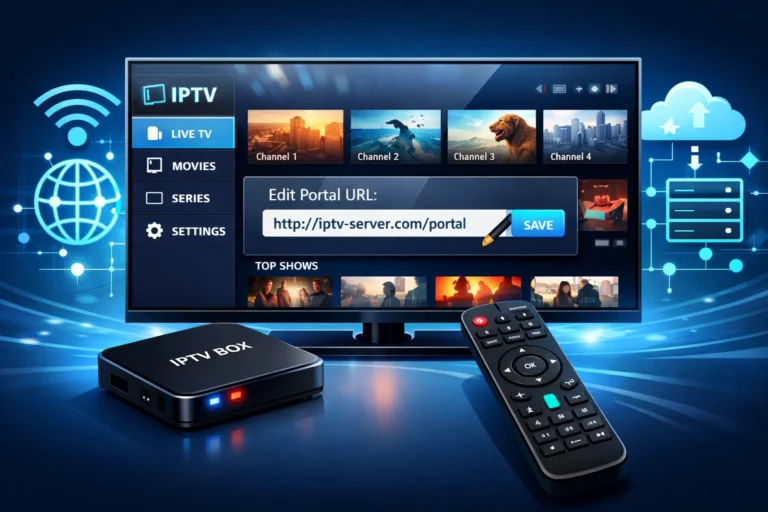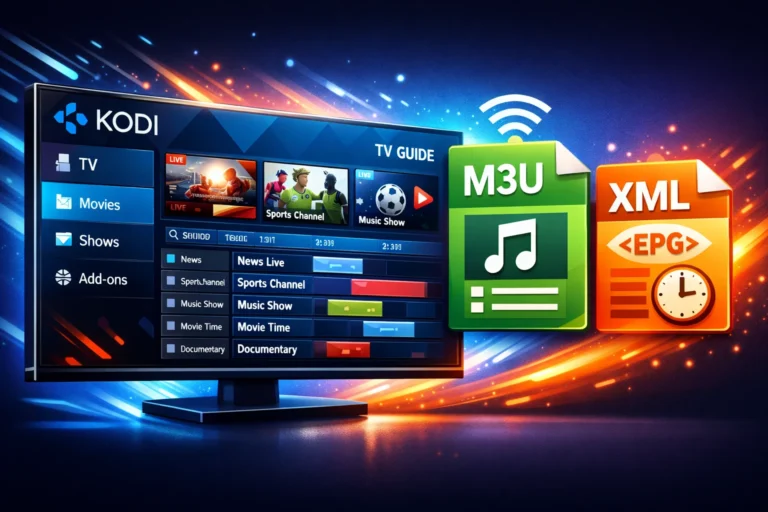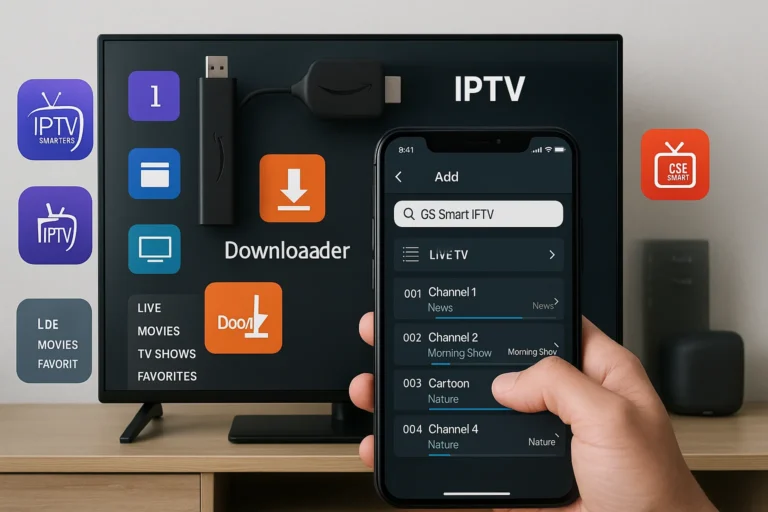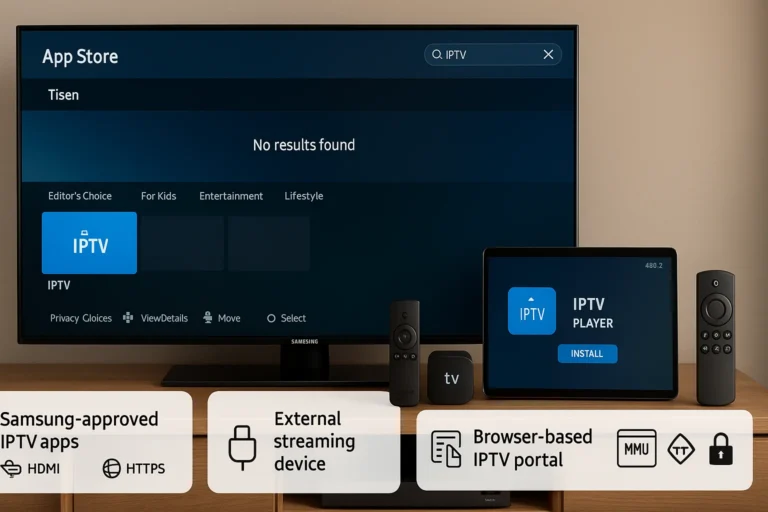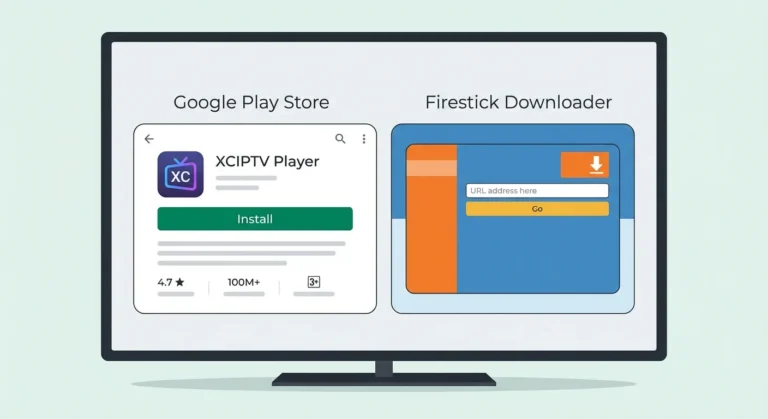
Before you install IPTV GSE Smart IPTV, check that your device meets the minimum requirements: iOS 11.0+ or Android 5.0+ with at least 2GB of RAM for smooth streaming. Older devices may not support the app or experience performance issues.
Download GSE Smart IPTV from the App Store (iOS) or Google Play Store (Android) to get the official version. Once installed, you’ll configure the app by adding your IP TV provider’s M3U URL, username, and password. Below are five simple steps to complete the setup and start streaming your favorite channels seamlessly.
Download GSE Smart IPTV from Your App Store

Begin the installation process by accessing your device’s app marketplace:
- Open the App Store (iOS) or Google Play Store (Android) on your device.
- Use the search bar to type “GSE Smart IPTV“.
- Locate the official GSE Smart IPTV app from the search results.
- Tap the download or install button.
- Wait for the application to complete installation.
- Ensure you have a stable internet connection during download.
- The app is free and compatible with most modern devices.
Launch GSE Smart IPTV and Familiarize Yourself with the Interface

Once installation is complete, open the app and explore its features:
- Locate the GSE Smart IPTV icon on your home screen or app drawer.
- Tap to open the application.
- Review the main interface showing options for playlists, settings, and content library.
- Explore sections for live TV, movies, series, and EPG (Electronic Program Guide).
- Grant necessary permissions when prompted (storage access, network access).
- Familiarize yourself with the clean, user-friendly layout.
- Note the location of key buttons like add playlist, settings, and favorites.
Add Your IPTV Playlist to the App
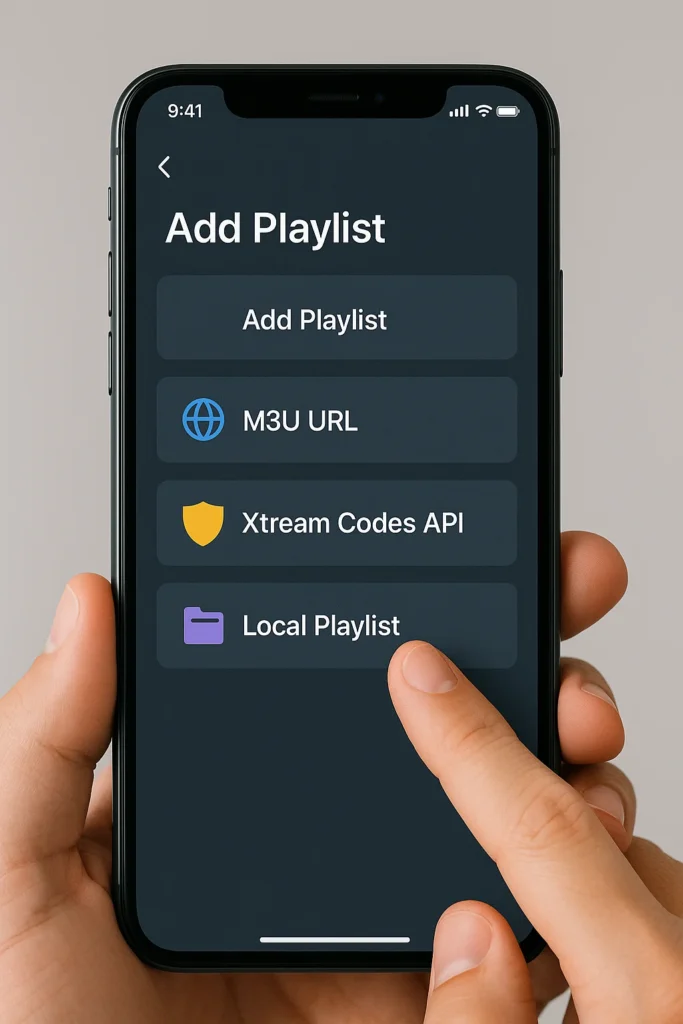
To start streaming, add your IPTV content using one of these methods:
- Tap the “+” icon or “Add Playlist” button in the main menu.
- Choose your preferred playlist method: M3U URL, Xtream Codes API, or local file.
- For M3U URL: Select “Remote Playlist” option.
- For Xtream Codes: Select “Xtream Codes API” option.
- For local files: Select “Local Playlist” and browse your device storage.
- Prepare your IPTV provider’s credentials for the next step.
- Multiple playlist types are supported for flexibility.
Enter Your IPTV Service Credentials and Configure Settings
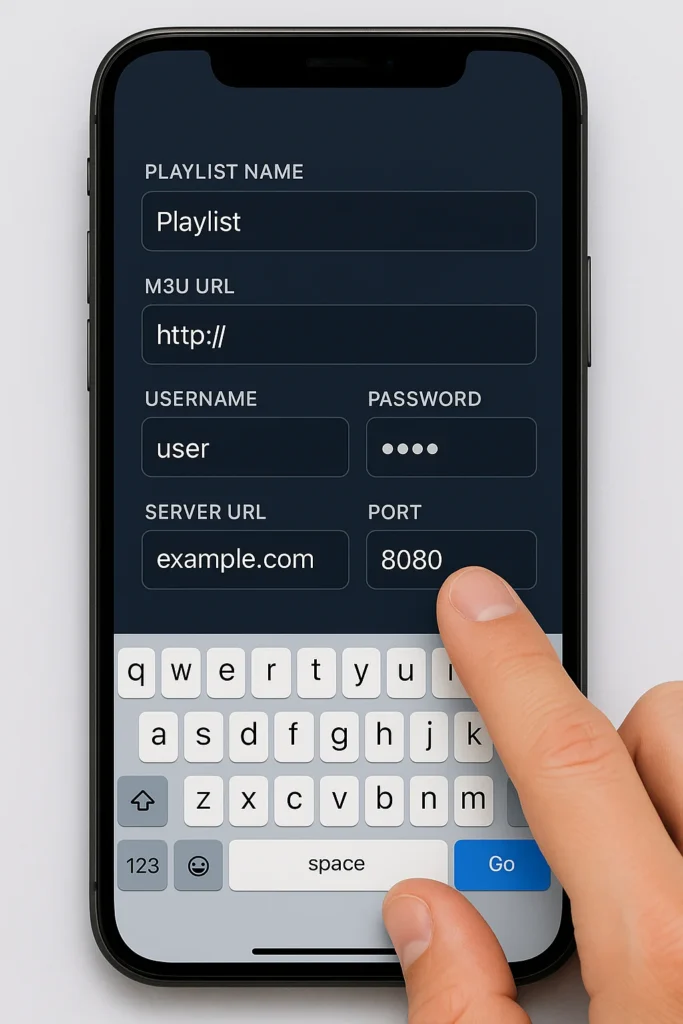
Input your IPTV provider’s information accurately:
- Enter your playlist URL or server address in the designated field.
- Type your username provided by your IPTV service.
- Input your password carefully.
- Add the server port number if using Xtream Codes (usually provided by your service).
- Give your playlist a custom name for easy identification.
- Double-check all entries for accuracy to avoid connection errors.
- Tap “Save,” “Add,” or “Done” to confirm.
- Wait for the app to load your channels (may take a few moments).
Start Watching and Customize Your Viewing Experience
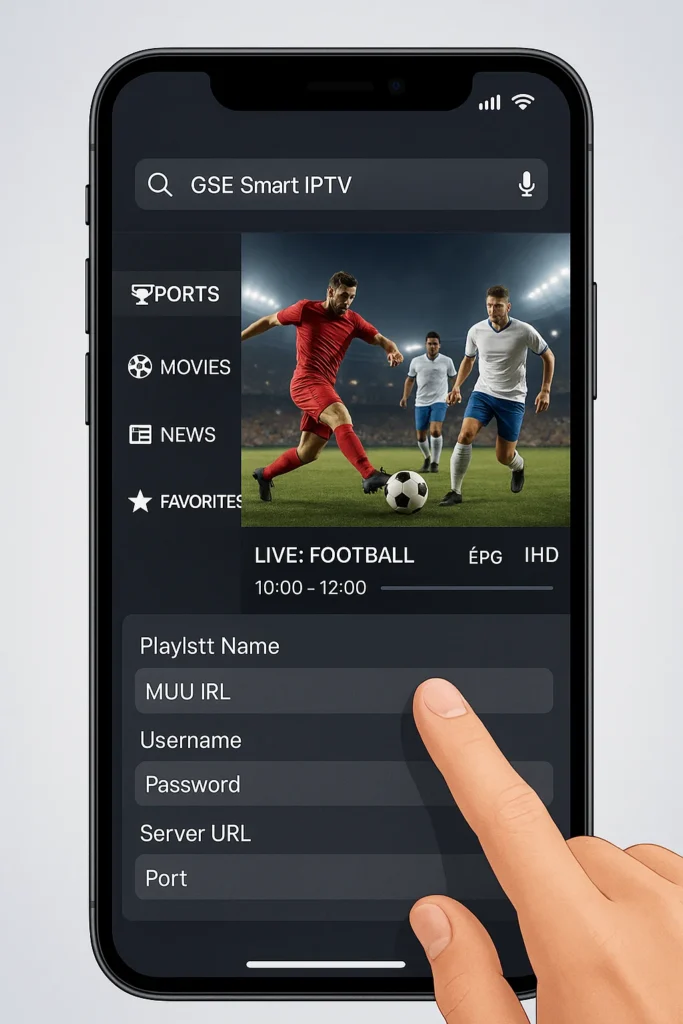
Once your playlist loads successfully, explore and personalize:
- Browse through all available channels organized by categories (sports, movies, news, entertainment).
- Select any channel to start streaming immediately.
- Add favorite channels for quick access by tapping the star or heart icon.
- Use the EPG feature to view program schedules and upcoming shows.
- Adjust video quality settings based on your internet speed.
- Enable parental controls if needed for family-friendly viewing.
- Customize app appearance through settings (themes, layouts).
- Enable subtitles and audio track options.
- Set up automatic playlist updates for the latest channels.
- Add multiple IPTV services and switch between them easily.
Frequently Asked Questions
Is GSE Smart IPTV Free or Does It Require a Subscription?
You’ll find GSE Smart IPTV’s app is free to download, but you’ll need separate subscription costs for actual content. The player provides IPTV features like EPG and recording, yet requires your own M3U playlist subscription.
Can I Use Multiple IPTV Providers Simultaneously on GSE Smart IPTV?
Yes, you can configure multi provider setup in GSE Smart IPTV. You’ll add separate playlists for each provider through IPTV compatibility options. Navigate to Remote Playlists, input each M3U URL individually, then switch between providers as needed.
Does GSE Smart IPTV Support Parental Controls for Restricting Content?
Yes, you’ll find parental control features within GSE Smart IPTV’s settings menu. You can configure content restriction options by setting PIN codes for specific channels or categories, though implementation varies depending on your IPTV provider’s support.
How Do I Record Live TV Shows Using GSE Smart IPTV?
You can’t directly record within GSE Smart IPTV’s interface. For recording methods during live streaming, you’ll need third-party screen recording apps or external capture devices. Configure your device’s built-in recorder for optimal troubleshooting results.
Is Using GSE Smart IPTV Legal in My Country?
You’ll need to verify IPTV regulations in your specific jurisdiction, as legal implications vary significantly. GSE Smart IPTV itself is legal software, but streaming copyrighted content without proper licensing violates laws in most countries.