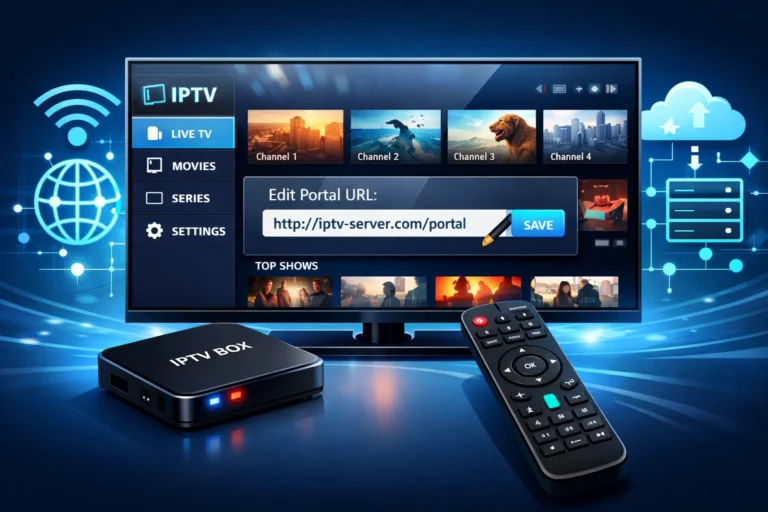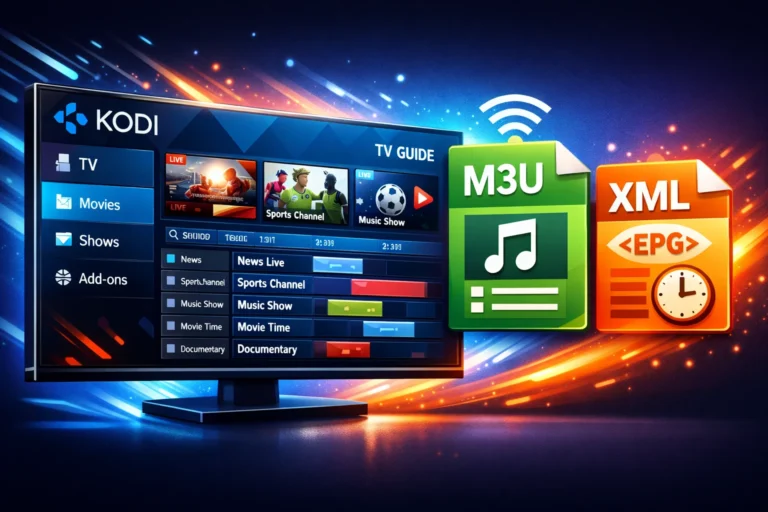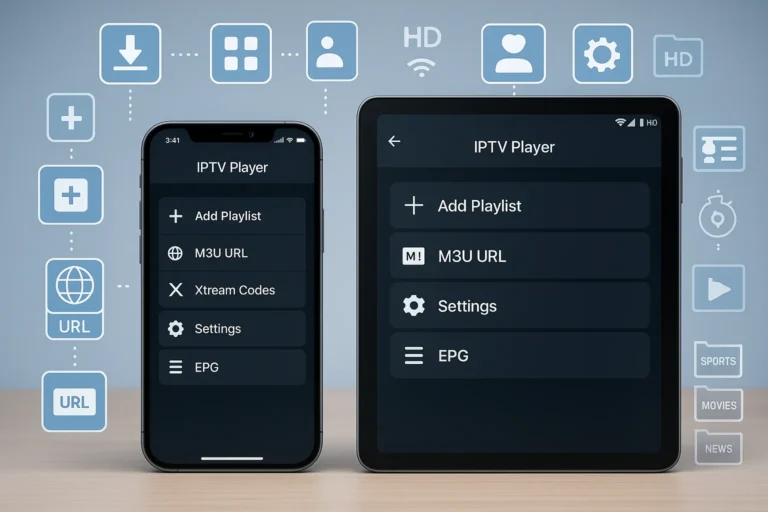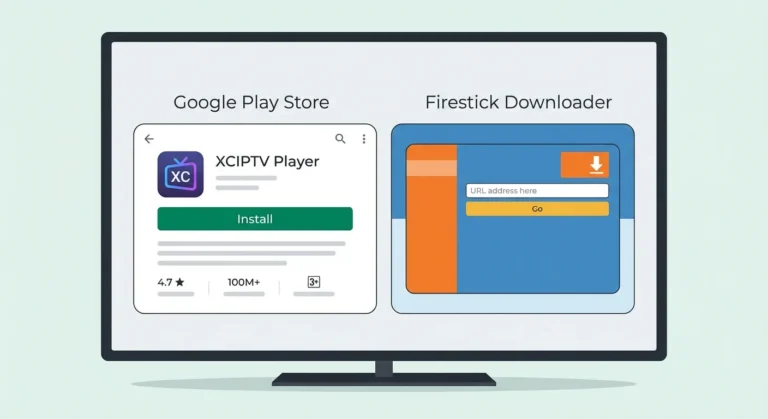
Install IPTV on a Firestick by first enabling “Apps from Unknown Sources” in Developer Options, then downloading the Downloader app from Amazon Appstore. Enter your IP TV provider’s APK URL through Downloader, complete the installation, and launch the application. You’ll then configure it with your M3U playlist URL or Xtream Codes credentials.
For smooth streaming without buffering, ensure your internet speed is at least 25 Mbps and clear the app’s cache regularly. Follow the detailed five-step process below for complete setup and performance optimization.
Prepare Your Firestick and Enable Installation Settings
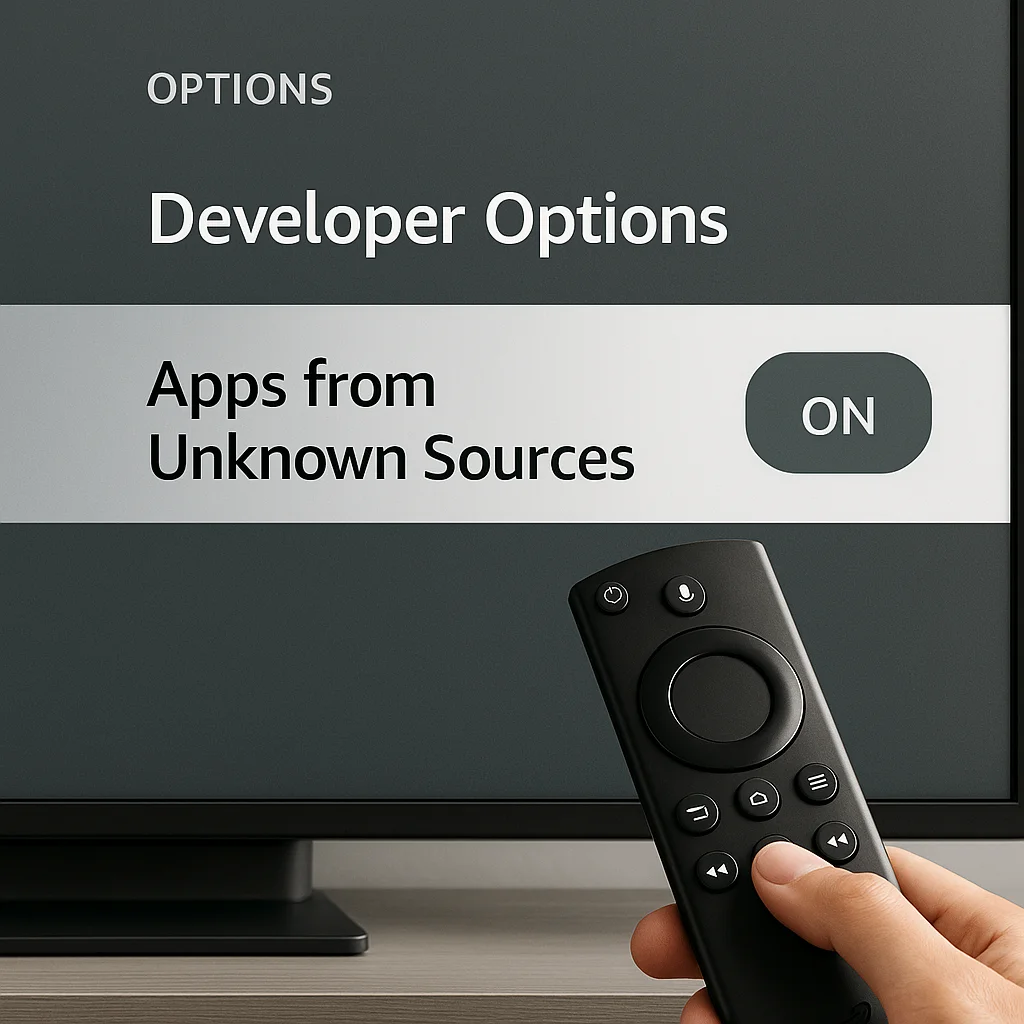
Before installing any IPTV app, you need to configure your Firestick to allow apps from unknown sources:
- Turn on your Firestick and navigate to the home screen.
- Go to Settings (gear icon at the top).
- Select “My Fire TV” or “Device” depending on your Firestick model.
- Click on “Developer Options”.
- Enable “Apps from Unknown Sources” by toggling it ON.
- Confirm the security warning by selecting “Turn On“.
- This setting allows you to install third-party IPTV applications.
- Return to the home screen to proceed with installation.
Install Downloader App for Easy IPTV Installation
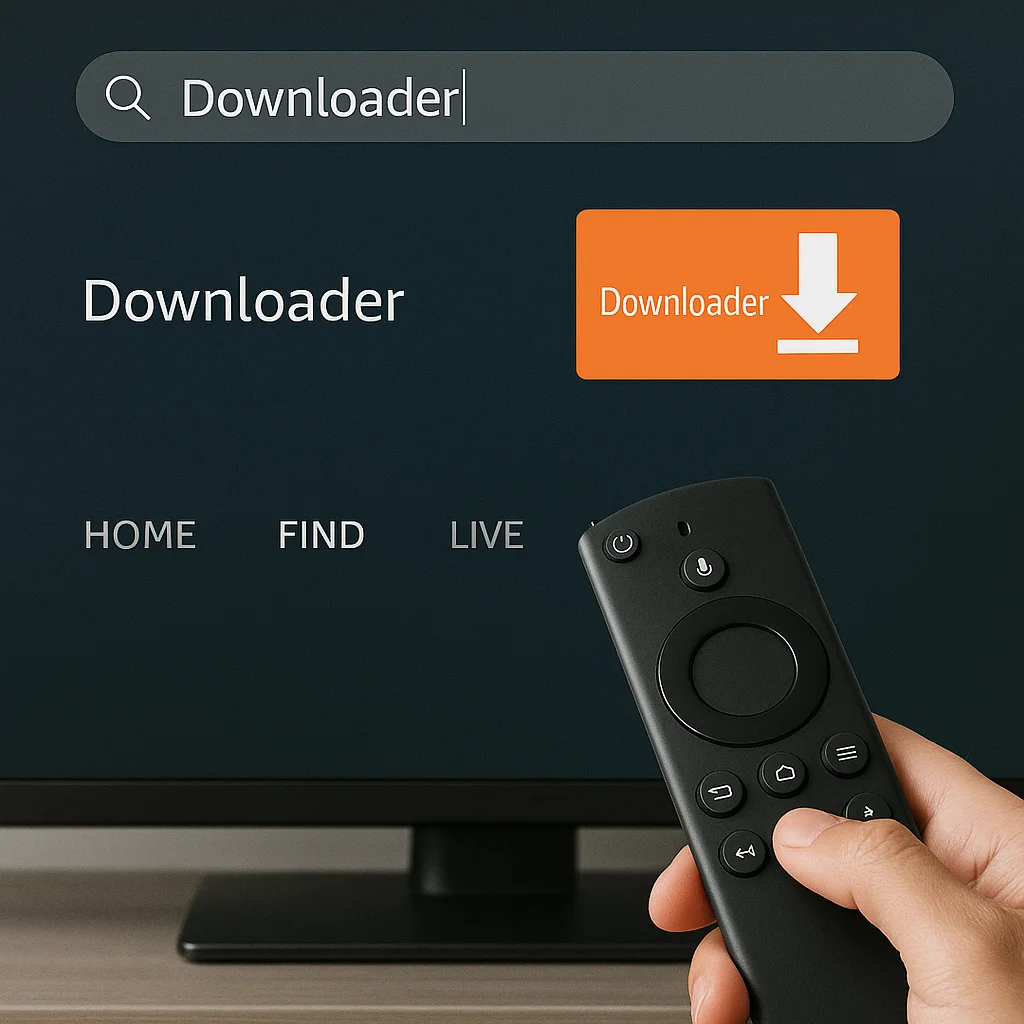
The Downloader app simplifies downloading IPTV applications on your Firestick:
- From the Firestick home screen, select the search icon (magnifying glass).
- Type “Downloader” using the on-screen keyboard.
- Select the Downloader app by AFTVnews from the search results.
- Click “Download” or “Get” to install the app.
- Wait for the installation to complete.
- Open the Downloader app once installed.
- Grant necessary permissions when prompted.
- The app is now ready to download IPTV applications.
Download Your Preferred IPTV Application
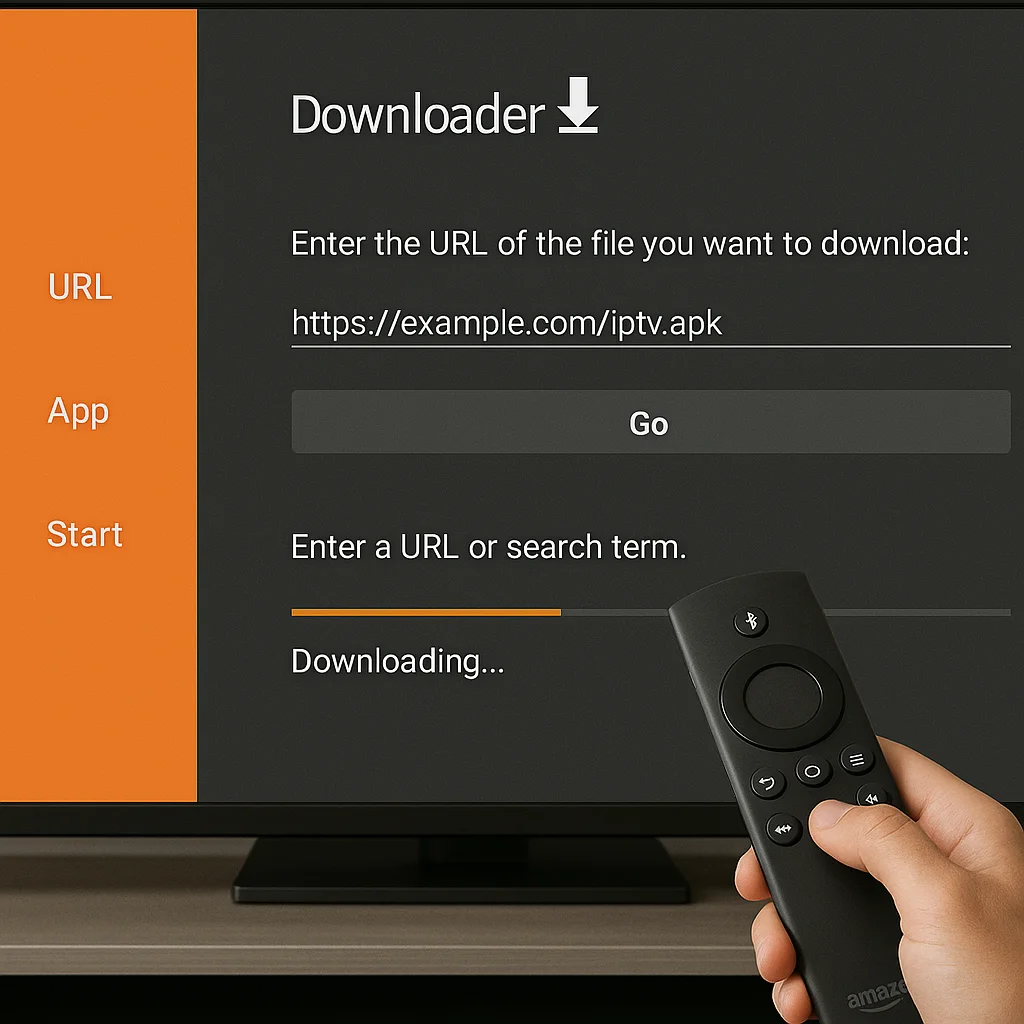
Use the Downloader app to get your chosen IPTV player:
- Open the Downloader app on your Firestick.
- Click on the URL field at the bottom of the screen.
- Enter the download URL for your IPTV app (e.g., IPTV Smarters Pro APK URL provided by your service).
- Click “Go” to start downloading the APK file.
- Wait for the download to complete (usually takes 30-60 seconds).
- Popular IPTV apps include IPTV Smarters Pro, TiviMate, or GSE Smart IPTV.
- Ensure you’re downloading from a trusted source.
- The app file will appear once download is complete.
Install the IPTV Application on Your Firestick
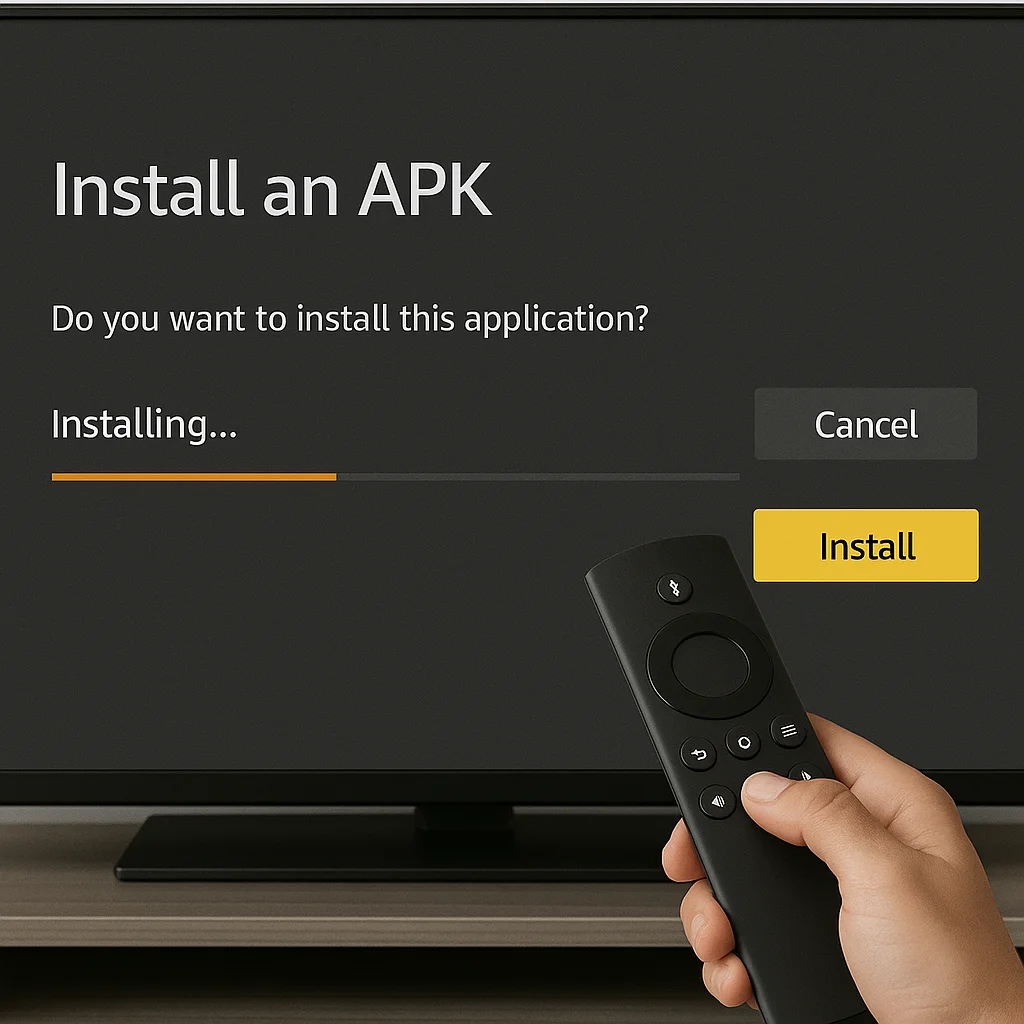
Once downloaded, install the IPTV app on your device:
- After download completes, the installation prompt will appear automatically.
- Click “Install” button on the right side of the screen.
- Wait for the installation process to finish (takes 10-30 seconds).
- Click “Done” when installation is complete.
- Choose “Delete” when prompted to remove the APK file and free up storage space.
- The IPTV app icon will now appear in your “Your Apps & Channels” section.
- You can also find it under “Settings > Applications > Manage Installed Applications“.
- Keep the Downloader app for future installations if needed.
Configure Your IPTV Service and Start Streaming
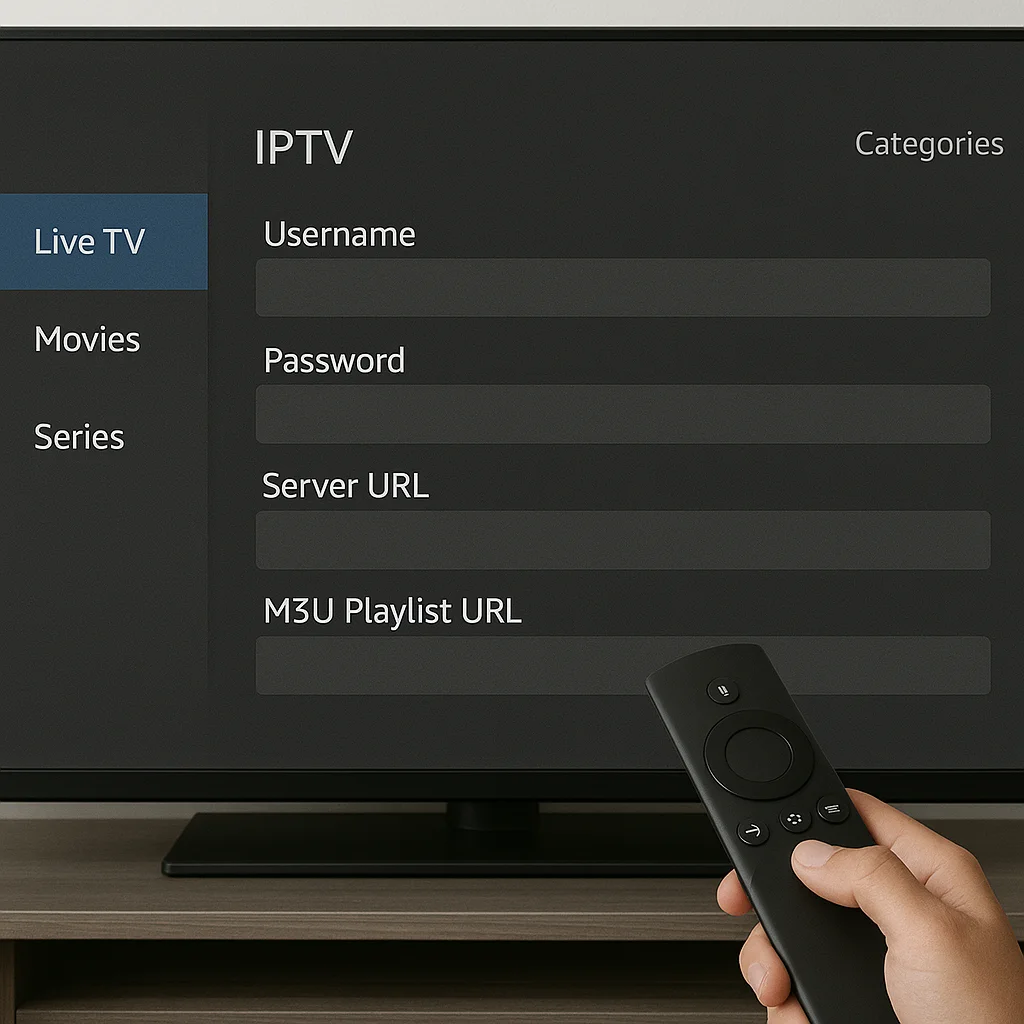
Set up your IPTV on a Firestick to begin watching:
- Locate and open your newly installed IPTV app from “Your Apps & Channels“.
- Select your login method (Xtream Codes API, M3U URL, or M3U Playlist).
- Enter your IPTV provider’s credentials: username, password, and server URL.
- Double-check all information for accuracy.
- Click “Add User” or “Login” to connect to your IPTV service.
- Wait for channels and content to load (may take 1-2 minutes).
- Browse through available live TV channels, movies, and series.
- Customize settings like parental controls, video quality, and EPG.
- Add favorite channels for quick access.
- Enjoy unlimited streaming on your Firestick with full remote control functionality.
Frequently Asked Questions
Is Using IPTV on Firestick Legal in My Country?
IPTV legality varies by country regulations. You’ll need to verify your local laws first. Check if you’re accessing licensed content providers. Troubleshooting tip: Research your country’s broadcasting laws, then ensure you’re using legitimate IPTV services only.
How Much Internet Speed Do I Need for Smooth IPTV Streaming?
You’ll need minimum 10 Mbps for HD streaming quality, 25 Mbps for 4K content. Check bandwidth requirements: run speed tests, close background apps, ensure stable connection. If buffering occurs, lower resolution settings or upgrade your plan.
Can I Use Multiple IPTV Services on One Firestick Simultaneously?
You can’t run multiple IPTV services simultaneously due to IPTV service compatibility limitations. For Firestick performance optimization, you’ll need to close one app before launching another. Try switching between services using the home button instead.
Will IPTV Installation Void My Firestick Warranty?
No, sideloading IPTV apps won’t void your warranty since you’re not making device modifications to hardware or firmware. Amazon’s warranty implications only apply to physical damage or rooting—standard app installations through Developer Options remain covered.
How Much Storage Space Does IPTV Typically Require on Firestick?
You’ll need 50-100MB for basic IPTV storage on your Firestick capacity. If you’re downloading content for offline viewing, allocate 1-2GB. Check Settings > My Fire TV > About > Storage to verify available space before installation.