Connecting IPTV Remote to TV requires proper configuration. You’ve unpacked your IPTV box, but now you’re staring at an unresponsive remote that won’t communicate with your TV. Whether you’re dealing with an RF or IR remote, the pairing process isn’t always straightforward.
Before you troubleshoot compatibility issues or dive into manufacturer codes, you’ll need to identify your remote type and understand your TV’s specific requirements for your IPTV subscription. The connection method you’ll use depends on one critical factor that most users overlook.
Identify Your IPTV Remote Type and Compatibility
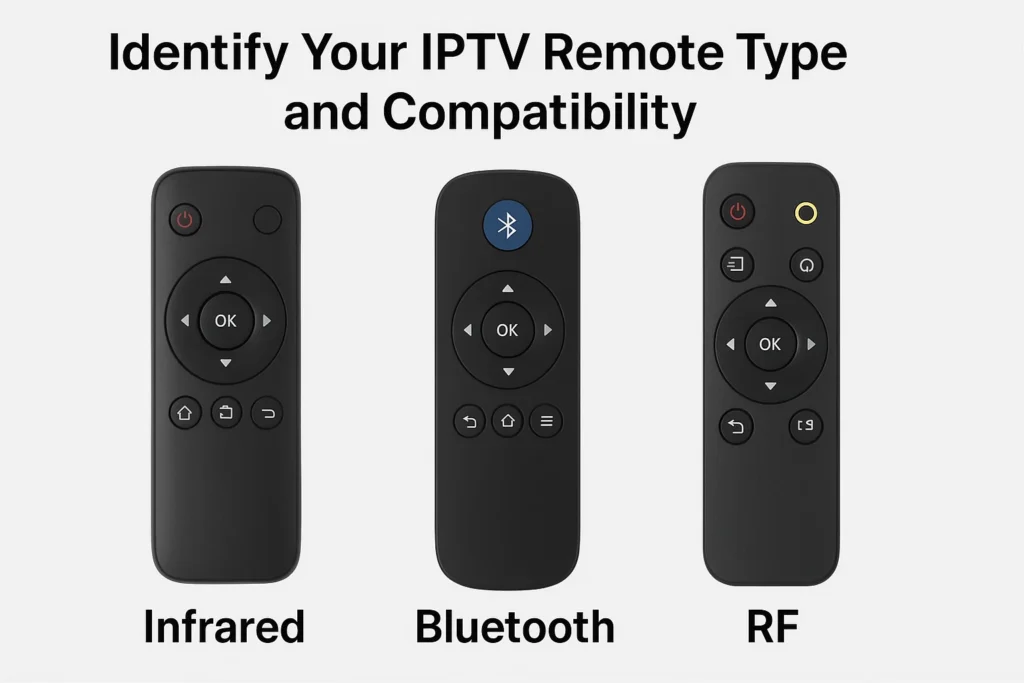
Before connecting your IPTV remote to TV, determine what type of remote you have. IPTV remotes typically come in three varieties:
- Infrared (IR) remotes that require line-of-sight.
- Bluetooth remotes that connect wirelessly.
- RF (radio frequency) remotes.
Check your IPTV box documentation to identify your remote type. Also verify that your TV supports external remote control input. Most modern smart TVs are compatible with universal remotes, but older models may have limitations. Keep your TV model number handy as you may need it for programming.
Prepare Your Devices and Insert Batteries
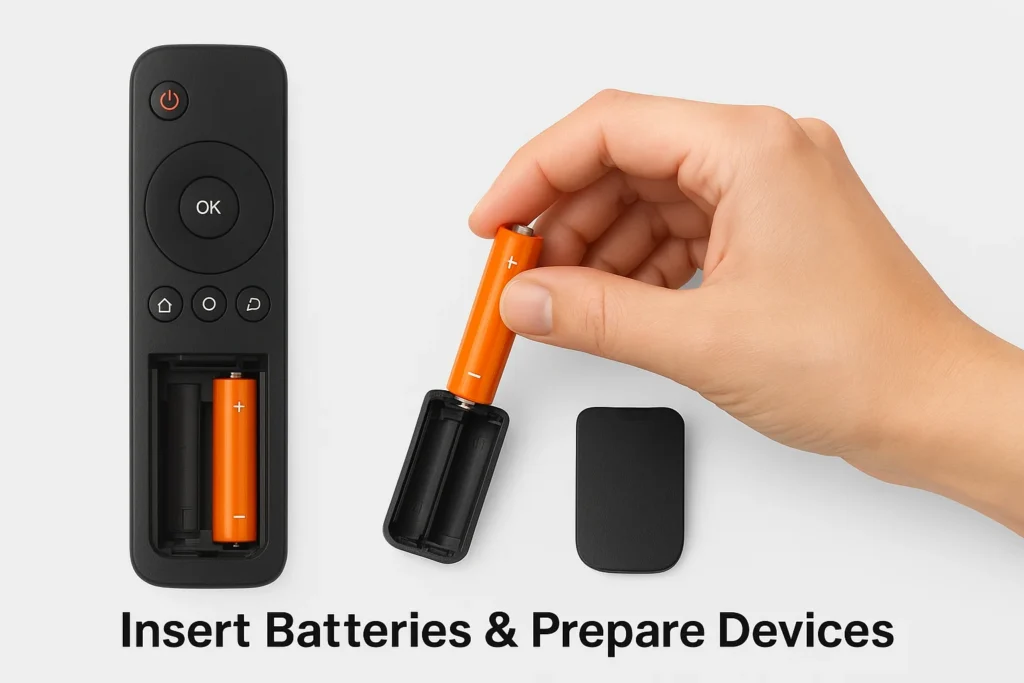
Insert fresh batteries into your IPTV remote, ensuring correct polarity (+ and -).
Most IPTV remotes use AAA or AA batteries. Turn on your TV and IPTV box, making sure both devices are functioning properly.
Position yourself within 3-5 feet of the TV for optimal signal reception during the pairing process.
If you have a Bluetooth remote, ensure Bluetooth is enabled on your TV by accessing the settings menu. Clear any obstacles between the remote and TV that might interfere with the signal, especially for IR remotes.
Enter Programming Mode on Your Remote
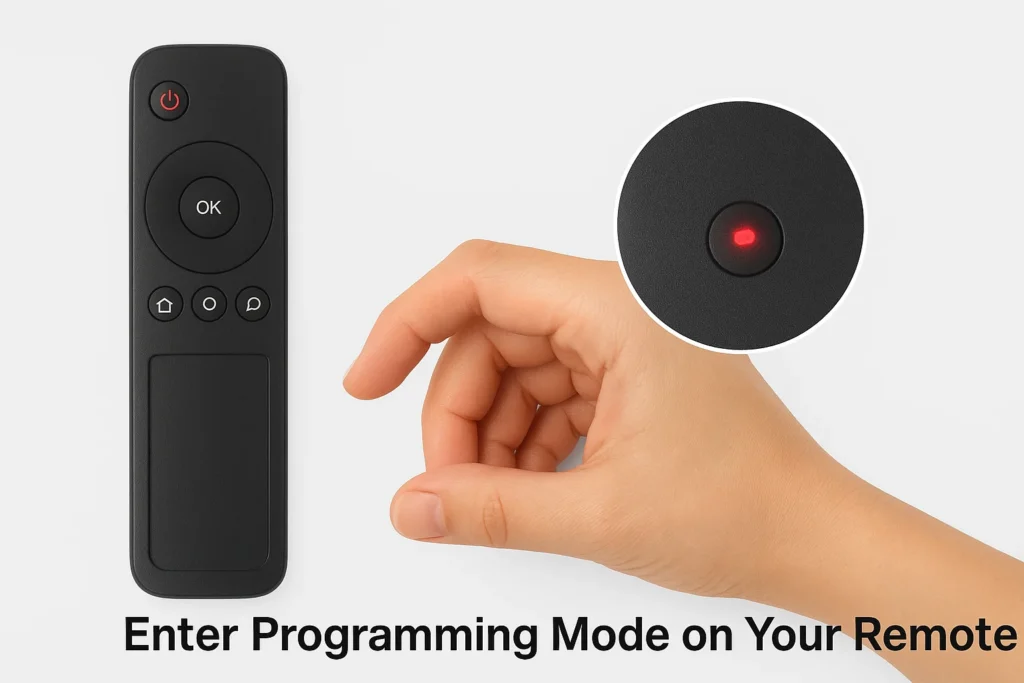
To connect your IPTV remote to TV, you’ll need to put the remote into programming mode.
The method varies by remote model, but typically involves holding down specific buttons. Common methods include: pressing and holding the “TV” or “Setup” button until an LED light blinks or stays lit, or pressing a combination like “TV + OK” buttons simultaneously for 3-5 seconds.
Consult your remote’s manual for the exact button combination. Once in programming mode, the remote’s LED indicator will usually flash or remain solid, signaling it’s ready to receive commands.
Input Your TV Brand Code or Auto-Search
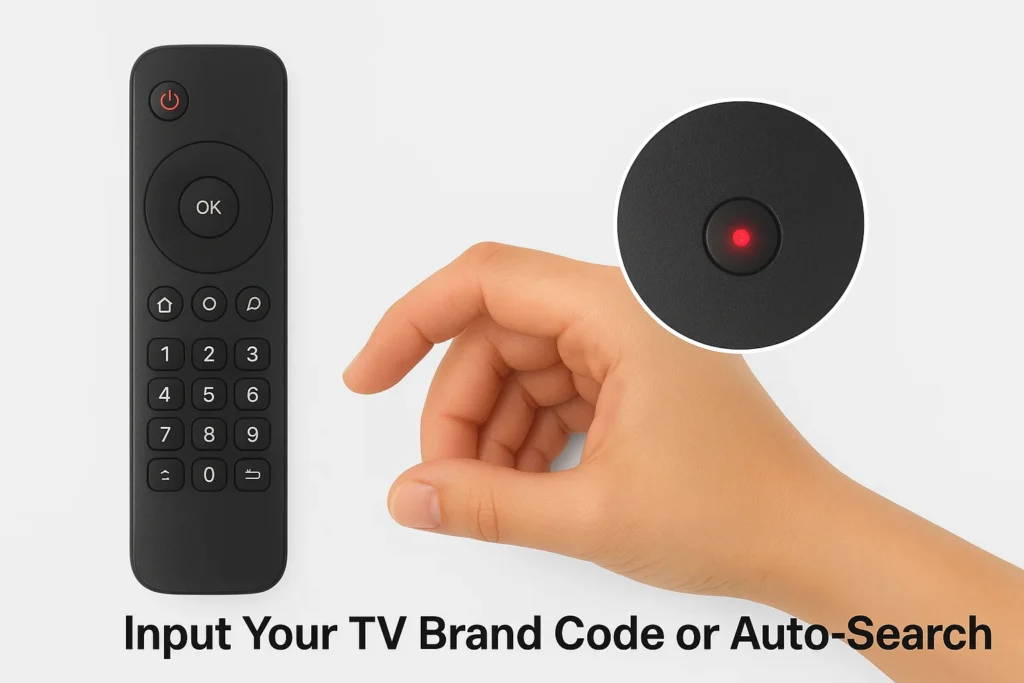
After entering programming mode, you have two options to pair the IPTV remote to TV.
Option 1 – Manual Code Entry: Find your TV brand’s code in the remote’s instruction manual or online database. Enter the 3 or 4-digit code using the number buttons on your remote. The LED should blink and turn off, indicating successful programming.
Option 2 – Auto-Search Method: If you don’t have the code, press the “Power” or “CH+” button repeatedly. The remote will cycle through all available codes. When your TV turns off, press “OK” or “Enter” immediately to save that code. This process may take 1-5 minutes depending on the remote model.
Test Functions and Save Settings
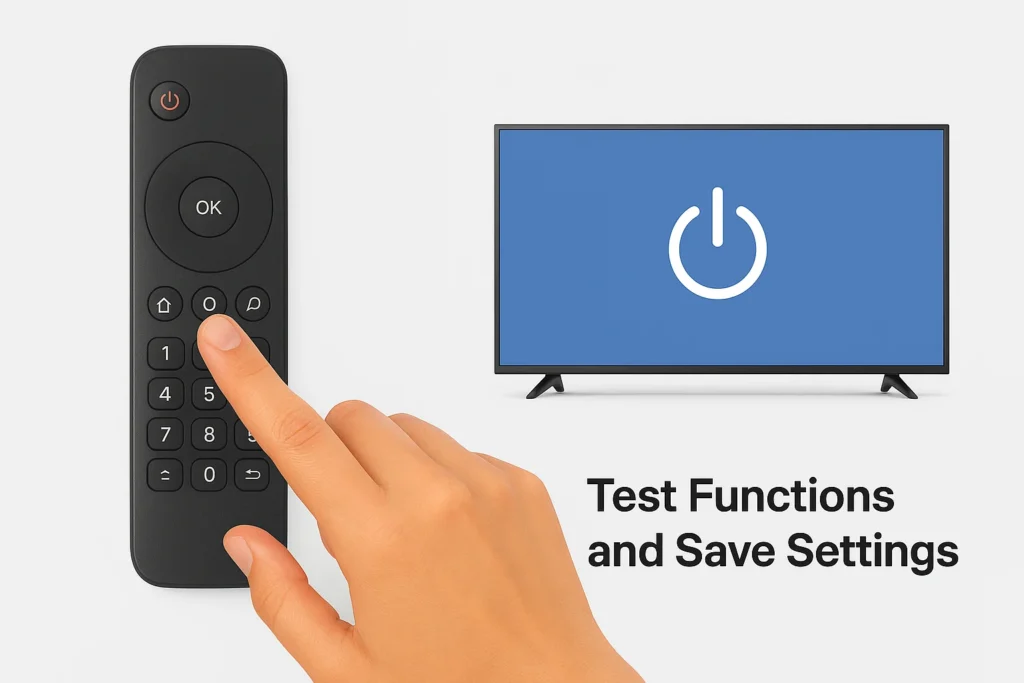
Once you’ve entered the code or completed the auto-search, test the remote’s functionality. Try turning the TV on and off using the power button.
Test volume up/down, channel switching, and input source selection. If all functions work correctly, the pairing is successful.
Press the “TV” button or exit programming mode according to your remote’s instructions to save the settings. If some functions don’t work, repeat steps 3-4 with a different code for your TV brand.
You may need to try multiple codes to find the one that enables all features. Once fully functional, your IPTV remote can now control both your IPTV box and TV seamlessly.
Frequently Asked Questions
How Much Battery Life Should I Expect From My IPTV remote to TV?
When you get IPTV service, you’ll typically get 6-12 months of battery performance from standard AAA batteries in your remote. Monitor your remote lifespan by checking response delays. If experiencing issues, verify battery contacts aren’t corroded and replace batteries following manufacturer’s specifications.
Can I Use My Smartphone as an IPTV Remote Instead?
Yes, you’ll find smartphone apps offering full remote functionalities for IPTV control. Download your provider’s official app, ensure you’re on the same Wi-Fi network, then pair through the app’s settings menu for seamless device synchronization.
Where Can I Buy Replacement IPTV Remotes for My System?
You’ll find replacement remote options through your IPTV provider’s website, Amazon, or eBay. Search your device’s model number for compatibility. Consider buying online from authorized retailers to ensure proper IR frequency matching and button mapping.
Do IPTV Remotes Work Through Walls or Closed Cabinets?
No, your IPTV remote signal won’t penetrate walls since it uses infrared technology. Wall interference blocks IR transmission completely. You’ll experience issues with closed cabinets too—ensure there’s a clear line-of-sight between remote and receiver.
Is It Safe to Use Third-Party IPTV Remotes With My TV?
You’ll find third party compatibility generally safe when verifying voltage specifications match your TV’s requirements. Check remote safety concerns by confirming FCC/CE certification markings. Test basic functions first, then advanced features. Avoid uncertified remotes lacking proper documentation.